Thursday, July 29, 2010

Wednesday, July 28, 2010

Configure LACP etherchannel on Xen Server 5.5 with Cisco switch

The default bonding mode for Citrix XenServer 5.5 is 1, or active-backup (slb).  This mode only provides fault tolerance, since only one NIC in the bond is active at a time.  For more heavily utilized production systems, an active-active configuration is preferable.  The two bonding modes that provide full send/receive balancing across all NICs are 4 (802.3ad) and 6 (alb).  Mode 4 provides link aggregation according to the 802.3ad specification, and requires an etherchannel to be configured on the switch.
The following is an example of how to configure an LACP/802.3ad bond with XenServer 5.5 and a Cisco 3750 switch running IOS.  
First, configure your switchports for an LACP etherchannel.  Note: in this case, we are making the etherchannel/Bond a trunk port which will only allow VLANs 2 - 11.  We have two NICs from our XenServer that make up the bond0 interface, plugged int Gi1/0/1 and Gi2/0/1.
// Configure the EtherChannel first
interface Port-channel1
description Etherchannel Team for XenServer1
switchport trunk encapsulation dot1q
switchport trunk native vlan 2
switchport trunk allowed vlan 2-11
switchport mode trunk
spanning-tree portfast
spanning-tree bpduguard enable
!
// now configure the individual switchports
interface GigabitEthernet1/0/1
description XenServer1 - eth0
switchport trunk encapsulation dot1q
switchport trunk native vlan 2
switchport trunk allowed vlan 2-11
switchport mode trunk
speed 1000
duplex full
channel-protocol lacp
channel-group 2 mode active
!
interface GigabitEthernet2/0/1
description XenServer1 - eth1
switchport trunk encapsulation dot1q
switchport trunk native vlan 2
switchport trunk allowed vlan 2-11
switchport mode trunk
speed 1000
duplex full
channel-protocol lacp
channel-group 2 mode active
!
// now make sure things are configured properly:
show etherchannel 2 summary
// this should output something like the following:
...
Number of channel-groups in use: 4
Number of aggregators:           4
Group  Port-channel  Protocol    Ports
------+-------------+-----------+-----------------------------------------------
2      Po2(SU)         LACP      Gi1/0/1(P) Gi2/0/1(P)
// Note, you may see the two nics in (I) instead of (P) until you configure and reboot your XenServer
Now, make the following changes to your XenServer host.
1. Create a Bonded interface from XenCenter.  Select your server, then the NICs tab and choose 'Create Bond'.  Add the PIFs you want
2.  The Citrix recommended option.  Run the following command on the XenServer host console.  Make sure to use the UUID of the Bonded interface.
    xe pif-param-set uuid= other-config:bond-mode=802.3ad
    (note: to find your PIF's uuid: xe pif-list host-uuid=<host uuid> )
    (note: to find your Host's uuid: xe host-list )
2a. Some of our users have reported problems getting the offical recommendation working, and suggested an alternate method:
On the XenServer host, edit the following file:
    /opt/xensource/libexec/interface-reconfigure

find the following line:
        "mode":   "balance-slb",
and replace it with
        "mode":   "802.3ad",
Then save and restart the XenServer.  This will change the default bonding method for all Xen bonds to "802.3ad".
3. To make sure things are working as expected, run (replace X with your bond number):
    cat /proc/net/bonding/bondX

    You should see something similar to this:
Ethernet Channel Bonding Driver: v3.1.2 (January 20, 2007)
Bonding Mode: IEEE 802.3ad Dynamic link aggregation
Transmit Hash Policy: layer2 (0)
MII Status: up
MII Polling Interval (ms): 100
Up Delay (ms): 31000
Down Delay (ms): 200
802.3ad info
LACP rate: slow
Active Aggregator Info:
        Aggregator ID: 1
        Number of ports: 2
        Actor Key: 17
        Partner Key: 2
        Partner Mac Address: <Switch's etherchannel MAC address>
Slave Interface: eth0
MII Status: up
Link Failure Count: 0
Permanent HW addr: <eth0's MAC address>
Aggregator ID: 1
Slave Interface: eth1
MII Status: up
Link Failure Count: 0
Permanent HW addr: <eth1's MAC address>
Aggregator ID: 1


This document has been coppied "AS IT IS" from here

Getting vDisk properties via MCLI

C“Virtual disk status” information can be extracted from the systray of the vDisk .
image
This can also be extracted via MCLI command
C:\Program Files\Citrix\Provisioning Services>mcli get disk -p diskLocatorId=1f4
bc0f9-8d18-4cee-88e9-241684a958d3
Executing: Get DISK
Get succeeded. 1 record(s) returned.
Record #1
    class:
    imageType:
    diskSize: 10485760000
    writeCacheSize: 0
    autoUpdateEnabled: 0
    activationDateEnabled: 0
    adPasswordEnabled: 1
    haEnabled: 0
    printerManagementEnabled: 0
    writeCacheType: 1
    activeDate: 2010/05/03
    longDescription:
    serialNumber: 62cd53ea-5448-11df-8000-000000000000
    date: 04/30/2010  12:06:11
    author:
    title:
    company:
    internalName: c:\pvs\srv2k3templ
    originalFile: c:\pvs\srv2k3templ
    hardwareTarget:
    majorRelease: 1
    minorRelease: 0
    build: 1

Source: CTX121333

Tuesday, July 27, 2010

Nicbonding issue with XenServer 5.5 , when connected to resource pool

If a pool of servers is created, and NIC 0+1 is bonded with the management interface running on this bonded network. All configuration steps were done from XenCenter
Problem :A new XenServer is added to the pool, the NICs are un-bonded before adding it to the pool (but the same problem exists even if they are bonded).The new XenServer is added to the pool and it picks up the pool network configuration however the Bond0+1network shows as unknown rather than connected.
Below host GMHO-PXEN002 host has been added into resource pool and under “management interfaces” you can see it as “Network”
image
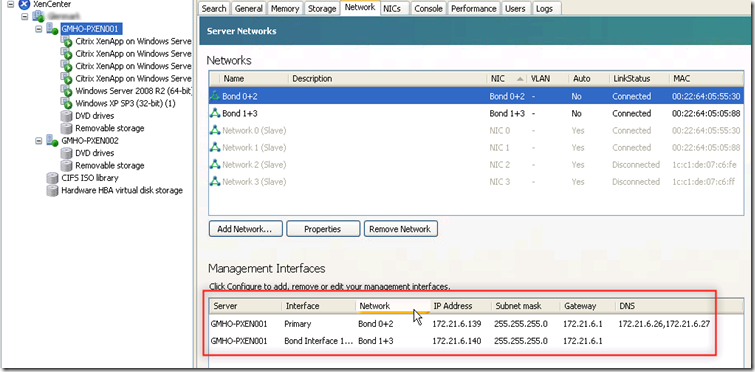
But for host GMHO-PXEN001 both the “Management Interfaces” are clearly visible with correct bond
image
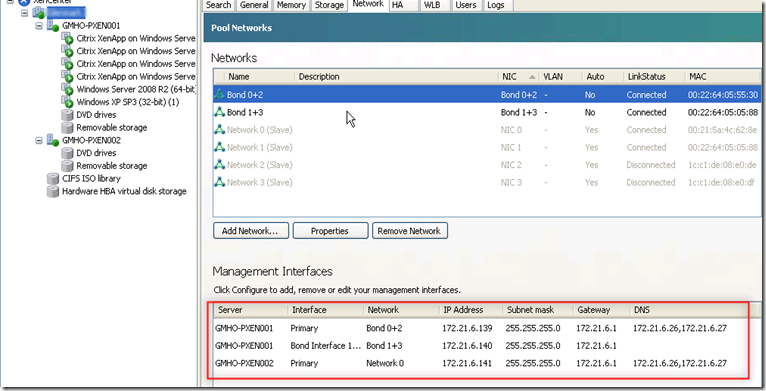
At the pool level only three “Management Interfaces ” are visible.
image
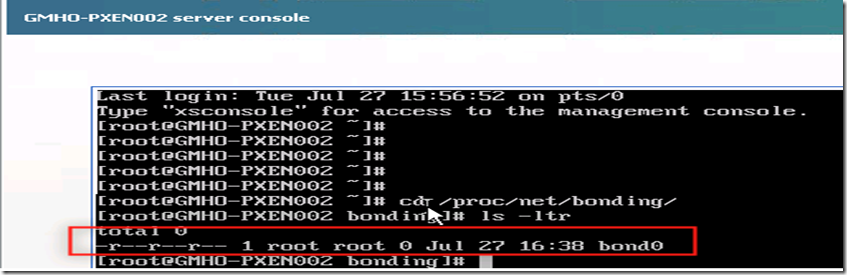
I then checked the file under /proc/net/bonding on host 001 and found that there are two bond file as per two bond existence
image
I then checked the file under host 002 and found that only one file is there though there are two bonds
image
Resolution
Remove the Bond0+1 network from the pool (which obviously affects all servers) and create the bond 0+1 again. Now this bond shows as connected on all XenServers.
To cross check I checked the file under host 002 and found that there are two files now
image
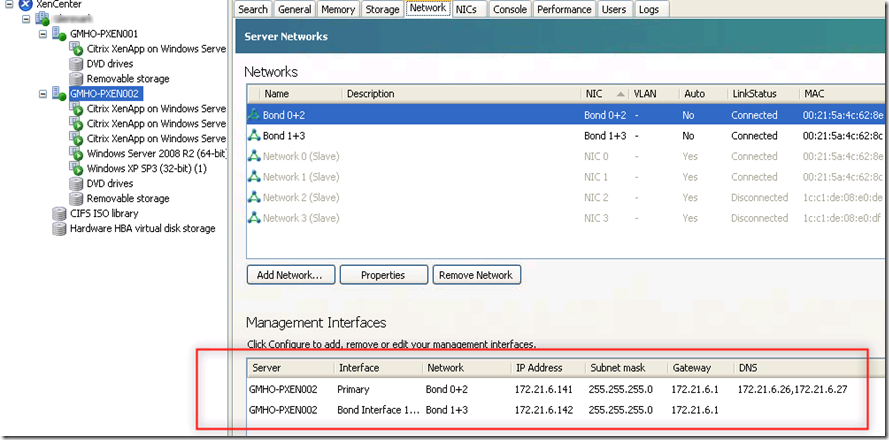
At the host level also it is shown correctly
image

Saturday, July 24, 2010

Dell answer to HP Virtual Connect :SR-IOV

Dell has come up with solution partenring Citrix to virtualize I/O . They name this technology as SR-IOV (Single Root I/O Virtualization ).In this solution, instead of a hypervisor virtualizing an I/O device in the software and sharing that emulated virtual NIC with multiple VMs, a single I/O hardware itself is subdivided logically to appear as 128 virtual NICs. Each NIC is assigned independently and directly to a virtual machine to provide precise per-VM control for connection speed and quality of service.

In HP Virtual Connect , you basically control and divide LOM card on blade into 8 different nic and then it is presented to host . On host you create a virtual switch to share the nic.

Read the complete story here
