Make sure you run it without any space as show above.
Tuesday, September 14, 2010
Administrator level privileges are required to configure Citrix XML service
When you try to configure Citrix XML service you may get message “Administrator level privileges are required to configure Citrix XML service”
Make sure you run it without any space as show above.
Labels:
Citrix
Thursday, August 5, 2010
Step by Step guide to setup iSCSI on a Dell MD3000i with XenServer 5.5
1. Initial setup and preparations on the XenServer.
a. On the XenCenter, create a new pool and add the appropriate host(s) to the pool. This is not necessary, but it is recommended. By doing so, you will end up with a system that has better scalability and easier manageability.Collect the open-iSCSI initiator’s iSCSI Qualified Name (IQN) of the XenServer. This serial number, when you highlight the host name, can be found under the General tab. Copy this number into your clipboard.
Configuration on Dell MD3000i
a. Configure the storage Array by creating virtual Disk array .
b. Select a new disk group and then hit next
c. Provide the name to this Disk Group and select manual since we have to choose the number of disk which will be assigned to this disk group.
d. Select the RAID group and then select all highlight all the disk , which you want be the part of this disk group. Click add to move it right panel.
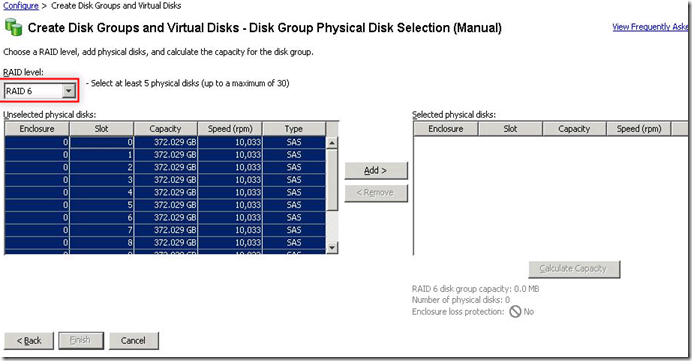
e. Once it is added , the usable space can be calculated
f. Once Disk group is created then we need to create virtual disk group.
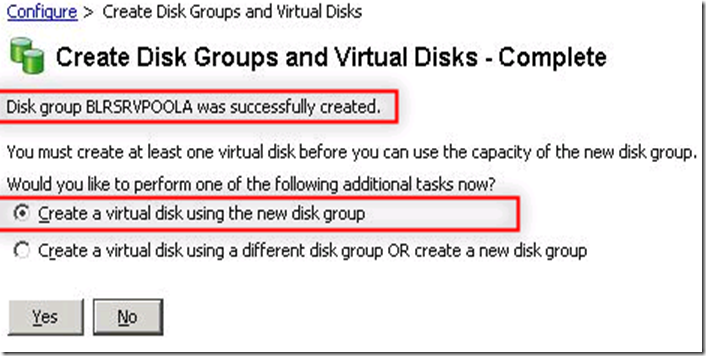
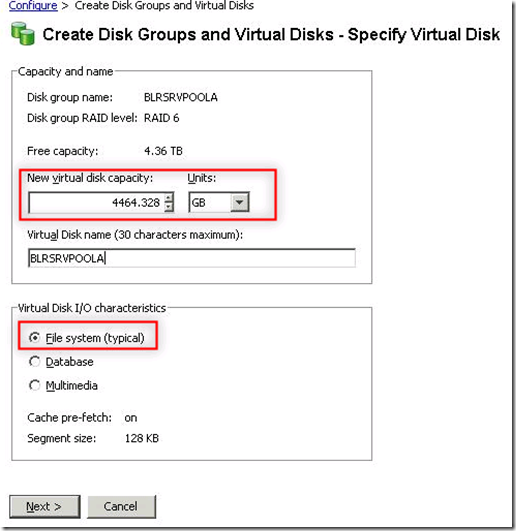
g. You can define the lun size which you want to present to the XenServer Host
h. You can define then mapping to the host group now or latter. Since there is no mapping done we will be choosing to map it latter and hit finish.
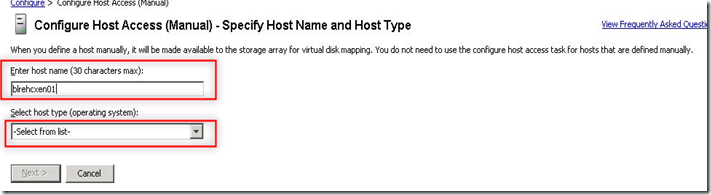
i. Now you will be create access manually for all the XenServer host with their respective IQN
i. Type the host name as it is and choose host type as “Linux”
j. Select new under ISCSI initiator type and hit “new”
k. Type the IQN which was collected in first part and host name will be populated by itself
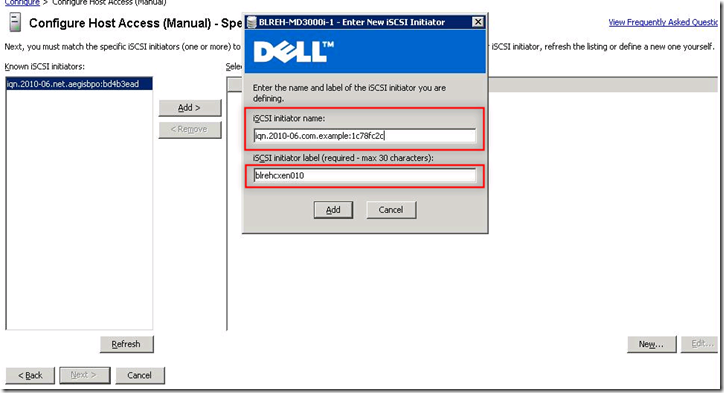
l. Select the existing host group as you define it above.
m. Once all the host has been added then create host to virtual disk mapping
n. Select the host group to not the host and hit next
o. And finally this will be mapped
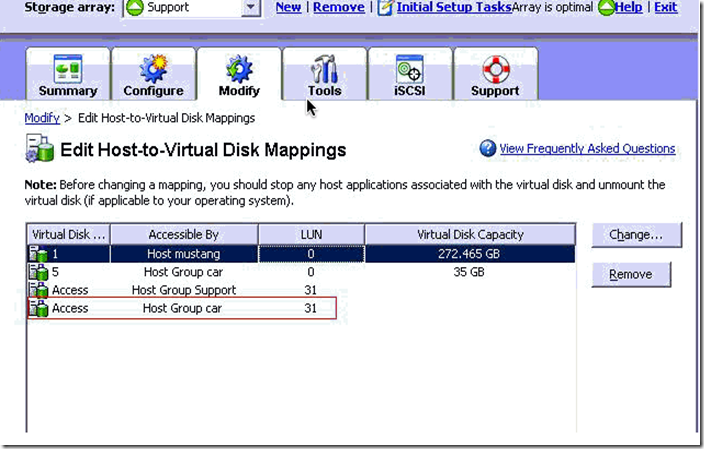
Attach lun to Xen Server host
a. Create a storage interface for communicating with Dell MD 300i
b. Specify correct IP address to communication with MD3000i
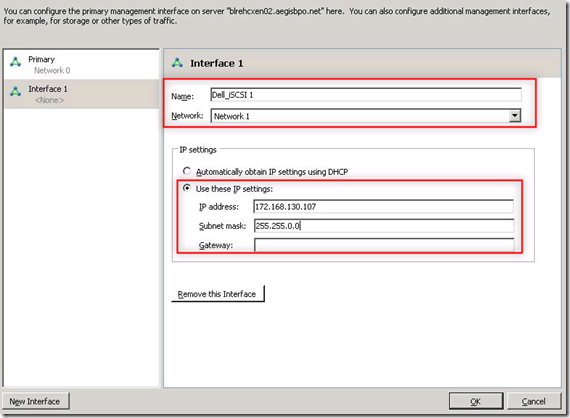
c. Select the XenServer pool and create new storage repository
d. Select ISCSI since it will be mapped using software ISCSI
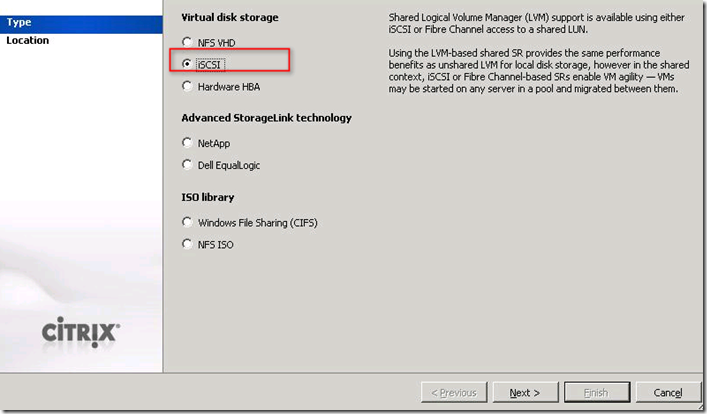
e. Specify the name which looks like SR and then type the IP address of MD 3000i IP address. Click on discover lun , you will see the IQN of Dell storage
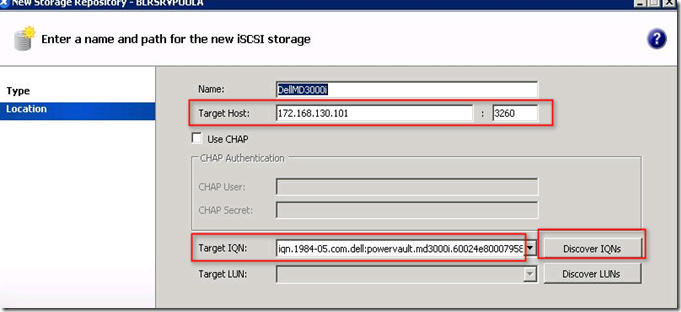
f. Click on discover lun to map the lun to the XenServer pool
g. You will find then which has been created in previous steps
h. If everything is configured it will be presented to pool like this
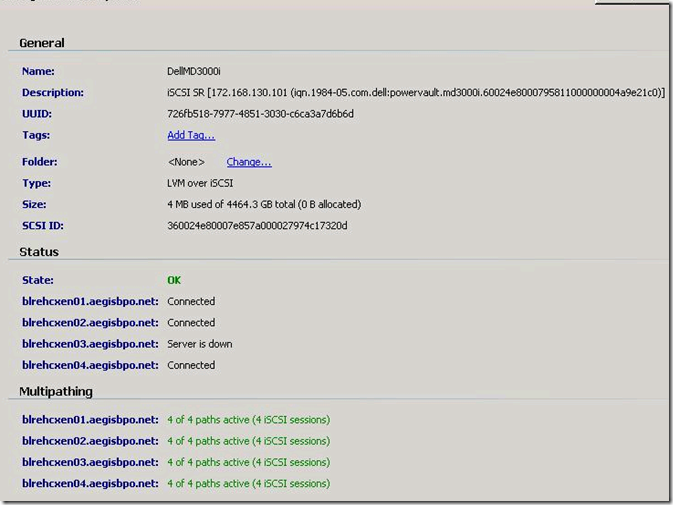
a. On the XenCenter, create a new pool and add the appropriate host(s) to the pool. This is not necessary, but it is recommended. By doing so, you will end up with a system that has better scalability and easier manageability.Collect the open-iSCSI initiator’s iSCSI Qualified Name (IQN) of the XenServer. This serial number, when you highlight the host name, can be found under the General tab. Copy this number into your clipboard.
Configuration on Dell MD3000i
a. Configure the storage Array by creating virtual Disk array .
b. Select a new disk group and then hit next
c. Provide the name to this Disk Group and select manual since we have to choose the number of disk which will be assigned to this disk group.
d. Select the RAID group and then select all highlight all the disk , which you want be the part of this disk group. Click add to move it right panel.
e. Once it is added , the usable space can be calculated
f. Once Disk group is created then we need to create virtual disk group.
g. You can define the lun size which you want to present to the XenServer Host
h. You can define then mapping to the host group now or latter. Since there is no mapping done we will be choosing to map it latter and hit finish.
i. Now you will be create access manually for all the XenServer host with their respective IQN
i. Type the host name as it is and choose host type as “Linux”
j. Select new under ISCSI initiator type and hit “new”
k. Type the IQN which was collected in first part and host name will be populated by itself
l. Select the existing host group as you define it above.
m. Once all the host has been added then create host to virtual disk mapping
n. Select the host group to not the host and hit next
o. And finally this will be mapped
Attach lun to Xen Server host
a. Create a storage interface for communicating with Dell MD 300i
b. Specify correct IP address to communication with MD3000i
c. Select the XenServer pool and create new storage repository
d. Select ISCSI since it will be mapped using software ISCSI
e. Specify the name which looks like SR and then type the IP address of MD 3000i IP address. Click on discover lun , you will see the IQN of Dell storage
f. Click on discover lun to map the lun to the XenServer pool
g. You will find then which has been created in previous steps
h. If everything is configured it will be presented to pool like this
Labels:
Citrix
Saturday, July 31, 2010
My Citrix Certification Road Map
Today I have completed my first ever Citrix certification .
Ultimately I want to achieve “ Citrix Certified Enterprise Engineer (CCEE) for Virtualization ”
Now to reach here I have to finish followings
Labels:
Citrix
Friday, July 30, 2010
Adjusting Dom0 Memory Settings on XenServer5.5
• The “dom0_mem=2940M” change gives more memory to dom0 which means that it can better handle large numbers of VMs. After changing this setting and rebooting, you then need to instruct dom0 to consume all of the memory allocated to it.
• On XenServer 5.5, including updates 1 and 2, the following sequence of commands can be used to achieve this:
. /etc/xensource-inventory
staticmax=`xe vm-param-get uuid=$CONTROL_DOMAIN_UUID param-name=memory-static-max`
echo staticmax=$staticmax
xe vm-param-set uuid=$CONTROL_DOMAIN_UUID memory-dynamic-max=$staticmax
xe vm-memory-target-set uuid=$CONTROL_DOMAIN_UUID target=$staticmax
You can confirm it worked by examining the contents of /proc/xen/balloon. The sum of 'Current allocation', 'Low-mem balloon' and 'High-mem balloon' should be equal to (or be pretty close to) the value you specified in /boot/extlinux.conf. (Usually the latter two of these parameters are zero.)
You only need to execute those commands once. The values you set for the dom0 memory target are saved in the xapi database which persists across reboots.
• There are some (rare) circumstances in which XenServer adjusts the memory target automatically (adds more memory to the host), but these should not affect you because you have set the target as high as static-max.
This means that if you want to go back to the old behavior, with a standard-sized dom0, you must reverse your changes – rebooting does not revert your configuration. If you undo the edits to /boot/extlinux.conf and reboot, executing the same commands should have the effect of causing dom0 to revert to 752 MiB.
Caution! The default value for the “dom0_mem” parameter is 752 MB. There is a historic reason for this value. It may be that on some machines going above this value causes poor performance.
Source :CTX124259
• On XenServer 5.5, including updates 1 and 2, the following sequence of commands can be used to achieve this:
. /etc/xensource-inventory
staticmax=`xe vm-param-get uuid=$CONTROL_DOMAIN_UUID param-name=memory-static-max`
echo staticmax=$staticmax
xe vm-param-set uuid=$CONTROL_DOMAIN_UUID memory-dynamic-max=$staticmax
xe vm-memory-target-set uuid=$CONTROL_DOMAIN_UUID target=$staticmax
You can confirm it worked by examining the contents of /proc/xen/balloon. The sum of 'Current allocation', 'Low-mem balloon' and 'High-mem balloon' should be equal to (or be pretty close to) the value you specified in /boot/extlinux.conf. (Usually the latter two of these parameters are zero.)
You only need to execute those commands once. The values you set for the dom0 memory target are saved in the xapi database which persists across reboots.
• There are some (rare) circumstances in which XenServer adjusts the memory target automatically (adds more memory to the host), but these should not affect you because you have set the target as high as static-max.
This means that if you want to go back to the old behavior, with a standard-sized dom0, you must reverse your changes – rebooting does not revert your configuration. If you undo the edits to /boot/extlinux.conf and reboot, executing the same commands should have the effect of causing dom0 to revert to 752 MiB.
Caution! The default value for the “dom0_mem” parameter is 752 MB. There is a historic reason for this value. It may be that on some machines going above this value causes poor performance.
Source :CTX124259
Labels:
Citrix
Step by Step guide for configuring EMC CLARiiON CX4 on XenServer
Today Citrix has released white paper which describe every possible way of configuring EMC Clariion on XenServer.
Labels:
Citrix
Subscribe to:
Comments (Atom)
