1. Initial setup and preparations on the XenServer.
a. On the XenCenter, create a new pool and add the appropriate host(s) to the pool. This is not necessary, but it is recommended. By doing so, you will end up with a system that has better scalability and easier manageability.Collect the open-iSCSI initiator’s iSCSI Qualified Name (IQN) of the XenServer. This serial number, when you highlight the host name, can be found under the
General tab. Copy this number into your clipboard.
 Configuration on Dell MD3000i
a. Configure the storage Array by creating virtual Disk array .

b. Select a new disk group and then hit next

c. Provide the name to this Disk Group and select manual since we have to choose the number of disk which will be assigned to this disk group.

d. Select the RAID group and then select all highlight all the disk , which you want be the part of this disk group. Click add to move it right panel.
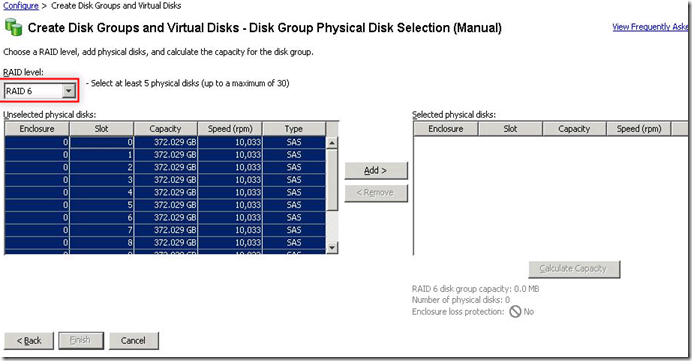
e. Once it is added , the usable space can be calculated

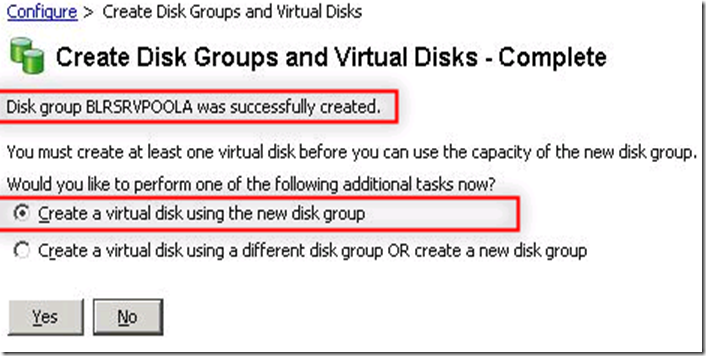
f. Once Disk group is created then we need to create virtual disk group.
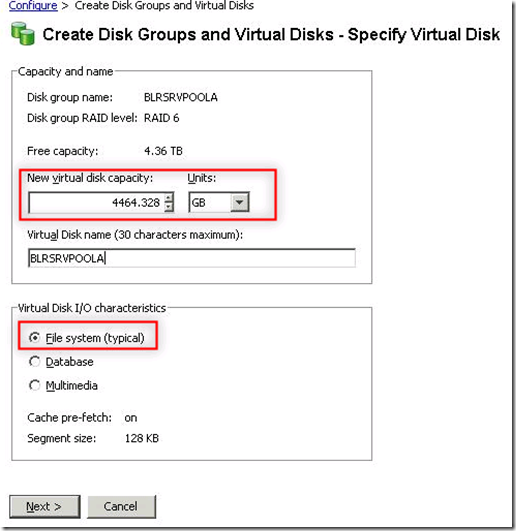
g. You can define the lun size which you want to present to the XenServer Host
h. You can define then mapping to the host group now or latter. Since there is no mapping done we will be choosing to map it latter and hit finish.

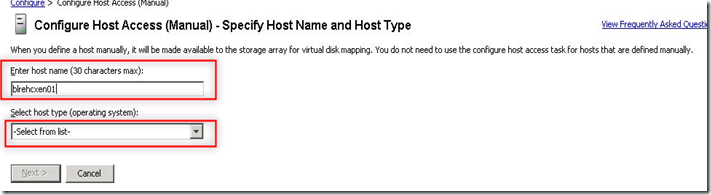
i. Now you will be create access manually for all the XenServer host with their respective IQN

i. Type the host name as it is and choose host type as “Linux”
j. Select new under ISCSI initiator type and hit “new”

k. Type the IQN which was collected in first part and host name will be populated by itself
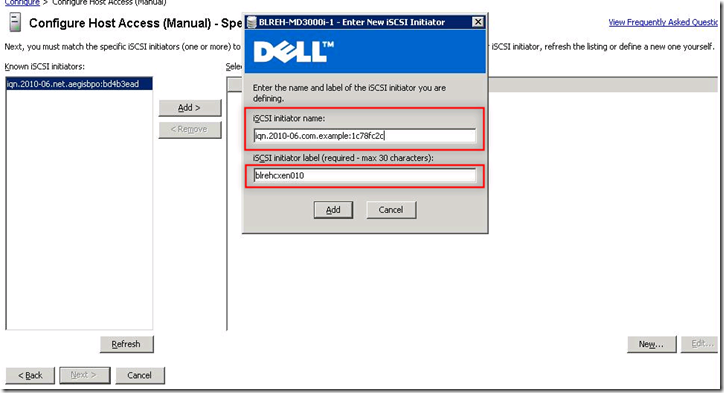
l. Select the existing host group as you define it above.

m. Once all the host has been added then create host to virtual disk mapping

n. Select the host group to not the host and hit next

o. And finally this will be mapped
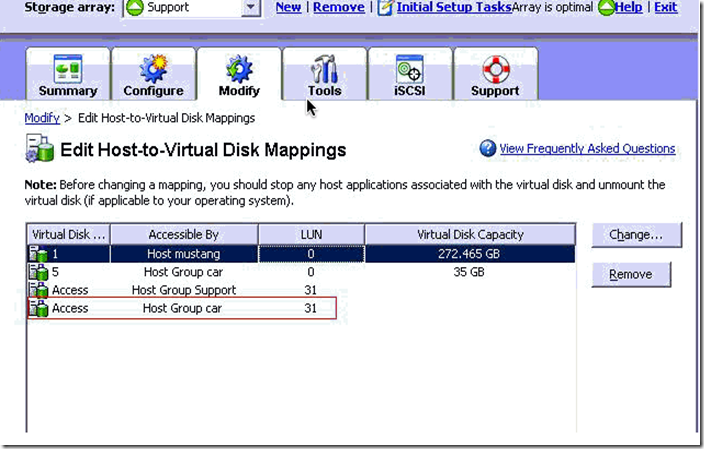 Attach lun to Xen Server host
a. Create a storage interface for communicating with Dell MD 300i

b. Specify correct IP address to communication with MD3000i
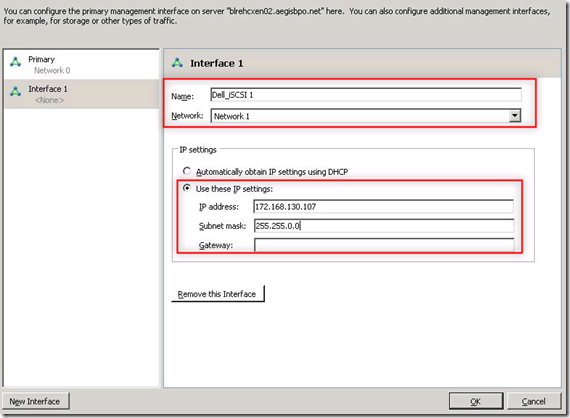
c. Select the XenServer pool and create new storage repository

d. Select ISCSI since it will be mapped using software ISCSI
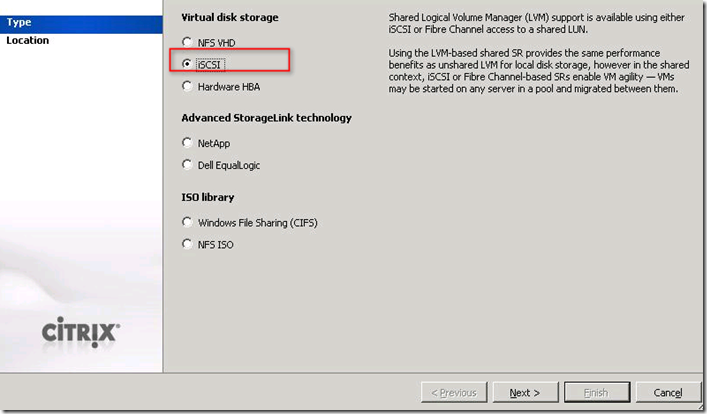
e. Specify the name which looks like SR and then type the IP address of MD 3000i IP address. Click on discover lun , you will see the IQN of Dell storage
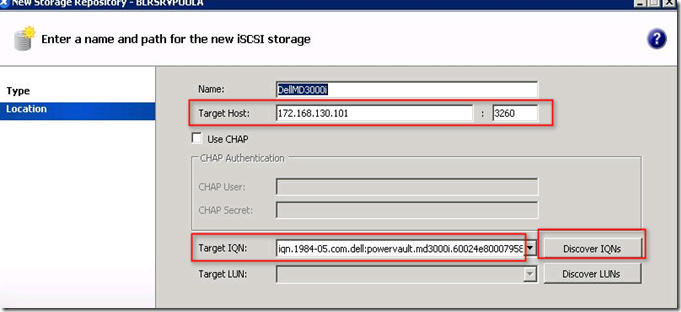
f. Click on discover lun to map the lun to the XenServer pool

g. You will find then which has been created in previous steps

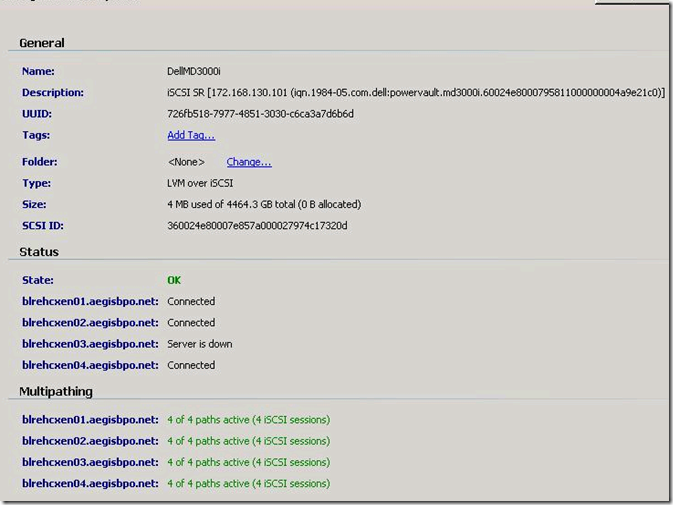
h. If everything is configured it will be presented to pool like this


 Posts
Posts



