Tuesday, September 21, 2010

How to create VM from snapshot on XenServer 5.6

XenServer gives you feature to create VM from Snapshot. In order to do that right click on snapshot on snapshot window

image

Then it will list the snapshots under template . Select the correct snapshot and proceed

image

Choose the  name for the  virtual  machine

image

Select DVD drive and then empty because you don’t need any media to install this

image

Select the home server for this VM. In my case I just have one XenServer

image 

This indeed gives you option to choose number of CPU and Memory

image

Choose location for disk to be stored. In my case it just have local drive

image


Supply network information . In my case it just have only one NIC card

image 

Check the summary before you finish button

image

Here is your virtual machine up and running from snapshot. This looks cool to me since I did not find anywhere that you can create VM from snapshot.

image

Product: Citrix Pool Management -- Error 1722. There is a problem with this Windows Installer package

During the installation of Citrix XenDesktop 4.0 on windows  2003 R2 64 bit , setup will fail

image

and “Citrix Desktop Delivery Controller Install Log.txt” will have following log entries.

MSI (s) (E0:40) [15:49:45:742]: Product: Citrix Pool Management -- Error 1722. There is a problem with this Windows Installer package. A program run as part of the setup did not finish as expected. Contact your support personnel or package vendor. Action CA_ConfigureExternalStoreACL, location: C:\Program Files (x86)\Citrix\VmManagement\CdsPoolMgr.exe, command: /install

MSI (s) (E0:40) [15:49:45:742]: User policy value 'DisableRollback' is 0
MSI (s) (E0:40) [15:49:45:742]: Machine policy value 'DisableRollback' is 0
Action ended 15:49:45: InstallFinalize. Return value 3.
MSI (s) (E0:40) [15:49:45:742]: Executing op: Header(Signature=1397708873,Version=301,Timestamp=1026915895,LangId=1033,Platform=0,ScriptType=2,ScriptMajorVersion=21,ScriptMinorVersion=4,ScriptAttributes=3)
MSI (s) (E0:40) [15:49:45:742]: Executing op: DialogInfo(Type=0,Argument=1033)
MSI (s) (E0:40) [15:49:45:742]: Executing op: DialogInfo(Type=1,Argument=Citrix Pool Management)
MSI (s) (E0:40) [15:49:45:742]: Executing op: RollbackInfo(,RollbackAction=Rollback,RollbackDescription=Rolling back action:,RollbackTemplate=[1],CleanupAction=RollbackCleanup,CleanupDescription=Removing backup files,CleanupTemplate=File: [1])
MSI (s) (E0:40) [15:49:45:742]: Executing op: ActionStart(Name=CA_ConfigureExternalStoreACL,,)
MSI (s) (E0:40) [15:49:45:742]: Executing op: ProductInfo(ProductKey={636C274D-95AB-44AC-A226-1584E8B59DB6},ProductName=Citrix Pool Management,PackageName=PoolManagementService.msi,Language=1033,Version=67113386,Assignment=1,ObsoleteArg=0,ProductIcon=ProductIcon,PackageMediaPath=\x64\en\Citrix Desktop Delivery Controller\,PackageCode={48BA66C0-3B83-44B9-91B7-86F4DEE73164},,,InstanceType=0,LUASetting=0,RemoteURTInstalls=0)
MSI (s) (E0:40) [15:49:45:742]: Executing op: ActionStart(Name=InstallServices,Description=Installing new services,Template=Service: [2])


This is because you have following installed
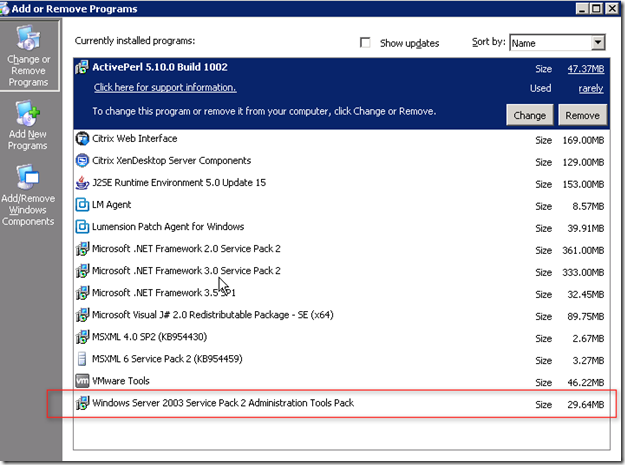
image


Uninstall “Windows Server 2003 Service Pack2 Admin tools pack” and then Citrix DDC setup will finish successfully . After that you can reinstall Admin pack.

Sunday, September 19, 2010

Change Web Interface setting to pre-populate domain name

When you lunch web interface you find that domain name needs to be typed . This can be pre populated.

image

To make changes , right click on website and select Authentication methods

image

Select the properties of  method to make changes

image 

Select settings under Authentication Type

image

Here you select as pre populated and add the domain name.

image

When you lunch WI next time you will find domain name there

image

Enable and disable Desktop viewer for XenDesktop

When you lunch desktop you will get desktop viewer . This allows you to minimize XenDesktop hosted desktop an use regular desktop. This can be disable or enabled

image


By default it will be enabled . To enable it look for default.ica in a folder used by desktop WI on a WI server. Edit that file and check for the value

ConnectionBar=1

Also there a webinterface.conf and you will find a setting  “ShowDesktopViewer” .This should be set to “=On”

Following combination work for DesktopViwer on WI


ConnectionBar=0 & ShowDesktopViewer=On - XD task bar is not showing
ConnectionBar=1 & ShowDesktopViewer=On - XD task bar is showing
ConnectionBar=0 & ShowDesktopViewer=Off - XD task bar is not showing
ConnectionBar=1 & ShowDesktopViewer=Off - XD task bar is showing

Tuesday, September 14, 2010

Change Citrix XenDesktop edition from command line

If you have installed XenDesktop as Platinum edition and need to change the edition , you dont need to uninstall . You can change the edition type from command line as shown below
image
