While accessing VM via XenCenter it gives message “Looking for guest Console”

To fix this we have to disable “Enable Remote Desktop Console scanning”
While accessing VM via XenCenter it gives message “Looking for guest Console”
To fix this we have to disable “Enable Remote Desktop Console scanning”
While logging off or logging into Web Interface user use to get following error message

Following message were appearing while logging off

We follow CTX127393 and tried to create separate XML policy . That did not worked
We need to create XML policy under “Unfiltered” .
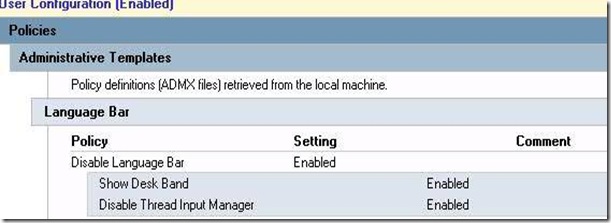
Following language bar appear while accessing XenApp hosted application
This is kind of annoying but there are many way to get rid of it
1. Following CTX explain how to get rid of it .
2. Following Seamless flag also work like a charm
DISABLE LANGUAGE BAR AGENT
Value: 0x40000
Explanation: Starting with Citrix Presentation Server 4.5, when using a Language Bar (for example for IME) in an ICA Seamless session, minimizing the Language Bar displays an icon in the local Systray, as opposed to a minimized Window above the local Taskbar as seen in earlier Presentation Server versions. Set this flag to disable the Language Bar Systray Support in Presentation Server 4.5 or later only for troubleshooting purposes, as it will revert the behavior to prior versions, whereby once the Language Bar is minimized, the window cannot be restored.
3. But following ADM file control this language bar in best way using GPO.
Citrix has made available the XenServer Virtual Machine Performance Utility. The utility is provided as a virtual appliance running Debian Linux which you can run on XenServer 5.5 or 5.6 or 6.0 as well
Basically you start with configuring a webserver on the performance VM, providing it with the ip address and credentials of the Pool Master, so the VM can control it. From a web page running on the performance VM you can then start the utilities.
This VM does require PXE enabled DHCP but incase if you have static VLAN then manually IP the appliance

The following test utilities are provided:
Disk I/O performance utility – From XenCenter you create and attach thin provisioned Virtual Desktops from the storage repository to the resource pool. Through the webservice running on the performance VM an inflate for the thin provisioned VM will be initiated, and this process will be measured performance wise. The following disk I/Os will be measured: sequential read/writes and random read/writes with various specified block sizes. In order to access performance data, the tool needs access to Dom0.
Network I/O performance utility – Which uses a modified version of netperf. Netperf runs on the back end and provides end-to-end request/response round trip latency and TCP/UDP throughput tests. For this it needs a Linux VM or dom0 at a remote site on which netserver, the receiving part of netperf must be installed and running.

Once appliance downloaded and imported , it should be placed on DHCP network to get the IP address. Supply Dom0 password which is nothing but a password of XenServer host where VM is hosted.
Once it is on DHCP address , url can be access using http://<IP ADDRESS of VM>:8888 and then IP address can be changed if required

Before you start the VM you should add the HDD for which you need test the performance.

Similarly network I/O’s can also be measured.


 Posts
All Comments
Posts
All Comments