Find out current date and time and then set the date and time with command
a. date –s
b. Then check the current time at BIOS using hwclock --show
And then synch the clock using
c. hwclock --systohc

Find out current date and time and then set the date and time with command
a. date –s
b. Then check the current time at BIOS using hwclock --show
And then synch the clock using
c. hwclock --systohc
While accessing VM via XenCenter it gives message “Looking for guest Console”
To fix this we have to disable “Enable Remote Desktop Console scanning”
While logging off or logging into Web Interface user use to get following error message

Following message were appearing while logging off

We follow CTX127393 and tried to create separate XML policy . That did not worked
We need to create XML policy under “Unfiltered” .
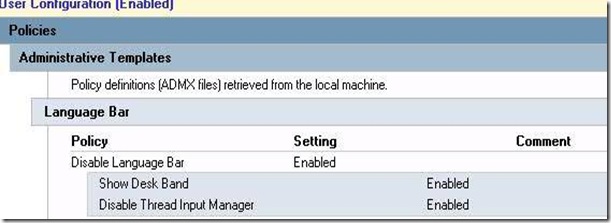
Following language bar appear while accessing XenApp hosted application
This is kind of annoying but there are many way to get rid of it
1. Following CTX explain how to get rid of it .
2. Following Seamless flag also work like a charm
DISABLE LANGUAGE BAR AGENT
Value: 0x40000
Explanation: Starting with Citrix Presentation Server 4.5, when using a Language Bar (for example for IME) in an ICA Seamless session, minimizing the Language Bar displays an icon in the local Systray, as opposed to a minimized Window above the local Taskbar as seen in earlier Presentation Server versions. Set this flag to disable the Language Bar Systray Support in Presentation Server 4.5 or later only for troubleshooting purposes, as it will revert the behavior to prior versions, whereby once the Language Bar is minimized, the window cannot be restored.
3. But following ADM file control this language bar in best way using GPO.


 Posts
All Comments
Posts
All Comments