Friday, March 22, 2013

How to capture TCP dump on Wyse T50

To capture Wyse T50 TCP dump we need to insure that we have "tcpdump" module is installed.  Now open terminal available

1.   

image

2. Now  run following command to get latest tcpdump

su -
cd /etc/apt
cp sources.list sources.list.back
cp sources.list.orig sources.list
sudo apt-get update

3. Now install tcpdump on Wyse terminal

image

And run following to autoclean

cp sources.list.back sources.list
sudo apt-get autoclean

4. Run following command to capture tcp dump

image

5. This will files under /tmp file

image

6. Now biggest challenge how to copy it? Insert pen drive into thin client and under following path you can copy tcpdump

image

Wednesday, March 20, 2013

Integrating foot pedal with XenDesktop

Foot Pedal are used to playback audio or video and used by various different industries. Here we are trying to integrate one such foot pedal with Express Scribe Transcription Software.
clip_image001[4]
These are HID based device which require few policies on XD and then if we need to run via thin client then few setting on VDA

Client USB redirection work with XenApp 6.0 and XenDesktop 5.0 or latter .
1.  Make sure this policies are in place
image
2. If we need to integrate with thin client then make sure we have registry hack for "AutoRedirect" explained in  CTX123015.  This need to made on virtual machine
image
To get the PID and VID for this foot pedal use device manager or use any physical machine where this was presentimage
3. When this need to integrate with thin client we need to do force redirect from end device itself. Recently some of the Wyse model do provide option using TCX USB Virtualizer
image
4. Lastly we should have USB device redirection rules applied on desktop group . Citrix eDocs explain in great detailimage
Once all these are in place this is how it show up when we use Wyse T50 thin client . Notice when Foot Pedal is plugged into thin client it does get auto detected.


And this is how it show up with Thick client

Tuesday, February 19, 2013

Citrix Tools for VM does not start what should I do

Yeah sometime you can find that VM tools service does not start and network tab will show IP address unknown

image

If you check the service it will not start

image

Check the Application  event log size  clear it and increase it from 64 to 256. This can also be done via GPO

image

Service will start without any issue :)

image

Thursday, February 14, 2013

I want to backup my Virtualized environment

Every institution wants to backup  virtualized  environment but is it really necessary to do so?  Yes it is necessary but we should know what component is really necessary. Most of the time we plan for hypervisor backup . Hummm how long does it take to build any hypervisor either its VMware or XenServer ?

For VMware I can build it within host in 3 minute using EDA /UDA . All the configuration is stored within virtual center SQL/Oracle database . So if I backup my VC database I can bring up the environment. If my ESX host crash I can build one new in 3 minute . Now why do I need to backup my ESX host ?

If my XenServer host crash I can build new one in 5~10 minutes . XenServer configuration is stored on metadata and this can be backed up on NFS from where it can be transferred to  tape. It would be not more then few 100 MB's . So do we need to backup hypervisor ?

If we have to backup Citrix virtual envoirnment which consist of XenApp and XenDesktop/PVS, just backup SQL server and webinterface server .Should I also be backing up Lic server ? Hell no , you can build new one within 5 minute . So how about virtual machine how should we back these up. Yeah here comes the strategy because backup will consume lots of bandwidth. So should I do snapshot level backup or agent level backup?

Now its era of 10G network and any backup infrastructure if designed properly , I will always prefer agent level backup . It is so simple to backup and restore.

The idea for this debate is to ensure that we do not create overhead for our IT operation team . At the same time we should save some buck on un-necessary backup infrastructure like Storage/Tape management (Iron Mountain) .

Details is not in scope of this blog :)

Open for debate so post your comment below.

Symantec and Citrix PVS streamed pooled desktop

I am assuming by now everyone what happen when we use Symantec anti virus on PVS streamed virtual machine. This has been discussed in detail in the article from Symantec. Something to quote from

  • Loss of communication between provisioned Symantec Endpoint Protection clients and manager.
  • Duplicate client entries appearing in the Symantec Endpoint Protection Manager (SEPM) every time a provisioned client is rebooted.
  • Provisioned Endpoint Protection clients switching between SEPM client groups, receiving wrong policies, not maintaining current definitions, etc.

To fix this Symantec suggest following :

  1. Disable Tamper Protection on the SEP client; this must be done to allow the file and registry changes in steps below.
  2. Close any open SEP Client GUIs, go to the command line, navigate to the Symantec Endpoint Protection program files directory and stop the SEP Smc service  smc -stop
  3. Set SEP service to start manually. 
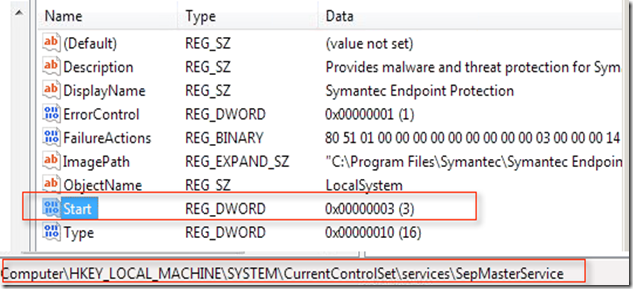
    In SEP 12.1, set HKLM\SYSTEM\CurrentControlSet\services\SepMasterService\Start=3
    In SEP 11.x, set HKLM\SYSTEM\CurrentControlSet\services\SmcService\Start=3

Now if you do not follow above two steps you wont be able make changes in the registry. If attempted following will be the error

image 

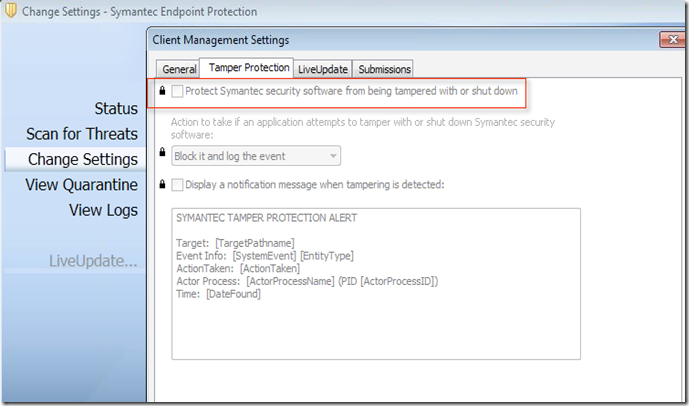
So we must  follow steps as mention above and first of all disable Tamper protection. But how will you do so because as soon as you stop Symantec service as mention above you wont get GUI and if client is managed one this will be grayed out by default.

image

So how to set the SEP service to manual ?

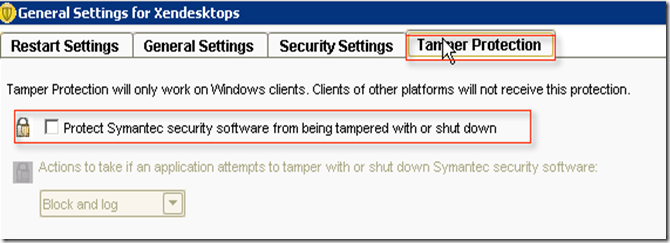
a) From SEP server browse to Client and then choose the container for which we have to disable Tamper protection. Choose "General Settings"

image

b) Under general setting you can find Tamper Protection option uncheck the box for making changes from client side
image

c) Now when you check the client side it will be disabled
image

e) Now when you try to make registry changes then it will allow you to make the changes also you can verify that SEP service has been set to manual
image

Revert back the change made in step b) . Also now we have to implement the script for machine startup . Copy the file under netlogin folder on Domain Controller and then apply the policies like this 

image

Not sure why people can not write simple plain KB understood by everyone .
