Saturday, June 8, 2013

Learning Hyper-V Lesson 5

When we have VMWare Virtual Center updated with latest version and ESX host with some lower version we use to install VC agent on ESX host to manage via VC. In similar way there is something called Virtual Machine manager agent which need to be installed on Hyper -V host. To get that we need SCVMM ISO

image

Incase we require perimeter network then we need to define it here.

image

Following ports 5985 and 443 is used to communicate between VMM and Hyper-V host.

image

After agent is installed service is started on the host

image

That's all to install.

image

Learning Hyper-V Lesson 4

Continuing my series with regard to Hyper-V learning . We got to change IP for Hyper-V host as well Hyper-V fail over cluster. Well there are no GUI way to change IP address and it need to be changed via PS CLI. There are many blogs which provide insight into changing IP for in same VLAN but when VLAN changes it result in subnet change as well.

image

And then change IP address via following command

image

Wednesday, June 5, 2013

Learning Hyper-V Lesson-3

I use to do lots of disk expansion way back in ESX 2.0 era . Today first time I have tried on Hyper-V and found it quite impressive compare to what we use to do, especially C: drive expansion. Few steps and within few minute C: drive will be expanded.

First identify hard disk under virtual machine settings and then select "Edit"

image

Now this will bring GUI which will walk through expansion steps. Here choose expand.

image

Then specify the size which needed.

image

Once machine booted it will show old size. We need to run diskpart to expand. Select the volume and then extend. Final result will show when you run list vol

image

Learning Hyper-V Lesson-2

When we design any hypervsior we separate management traffic from VM traffic. With linux based (VMWare/XenServer) is quite easy but with Hyper-V concept are little different. With this blog we are going to discuss how to configure VM traffic network on Hyper-V with HP Blade Virtual Connect manager (VCM 3.70) is used. Now I am not going to discuss how to create Shared Uplink set because I have discussed this twice.

Here I am assuming that two shared uplink set has been setup and then we are binding new VLAN.  Here you can see for VM traffic we have create VLAN with the name CitrixInfra_VLAN(X)_1 and CitrixInfra_VLAN(X)_2 which is mapped to Shared Uplink Set_1/2. (VLAN ID has been masked)

image

Now these VLAN's should be mapped to each of the Hyper-V profile under  "Multiple Networks".  Each NIC has to be mapped to individual SUS. image

Now login to Hyper-V host and launch HP Network Configuration Utility. In this case we have define teamed interface as "VM traffic" and will be used for VM related traffic. Now select VLAN(802.1Q)

image

Here you add the VLAN ID and name.  Once that is done symbol of teamed network will change will have "V" on TOP
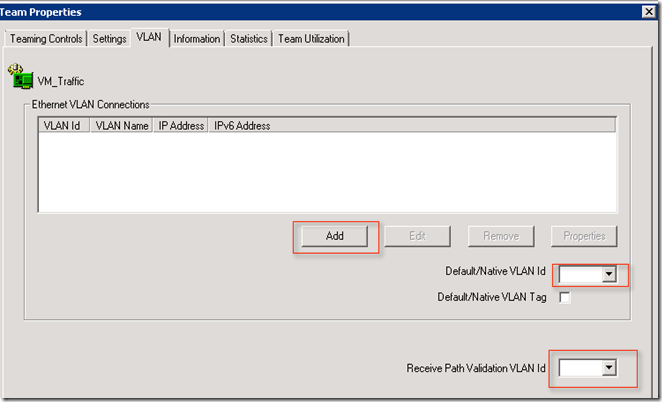
image image

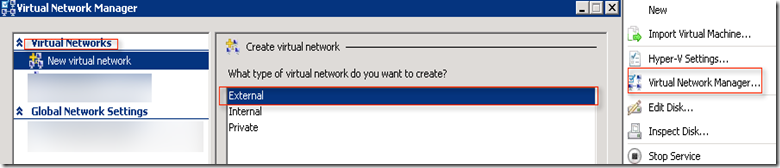
Now select virtual network manager from Hyper-V manager and select "Virtual Network Manager"  and choose External Network
image

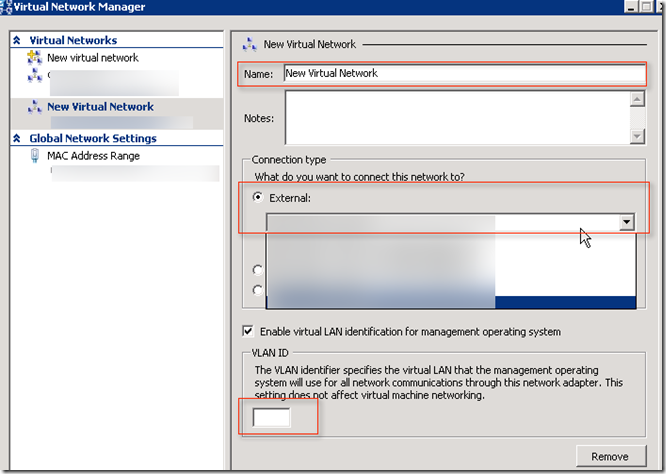
Now choose the name for this new virtual network and select the connection type as teamed nic which we have created above. Make sure VLAN ID is populated with VLAN number which we have define above.
image 

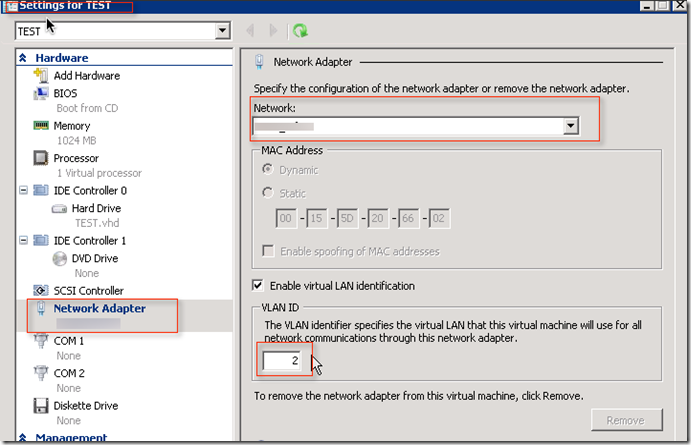
Once all the above is done you can view this network on virtual machine settings  and yes you need to tag it here as well. This is bit complicated compared to what we do on XenServer and ESX host.
image

Tuesday, June 4, 2013

Learning Hyper-V Lesson-1

So far I have learned two hypervisor VMWare ESX and XenServer . Done some big implementation with these hypervisor. Now I have started implementing Citrix solution on Hyper -V 2008R2 . Yeah  at SYN2013 Citrix has formally announced  Hyper-V 2012 support with XenDesktop 7 and will support XD 5.6 with Hyper-V 2012 post October. Though some post claim that they have done implementation of XenDesktop 5.6 with Hyper-V 2012 but Citrix do not support it. Main reason is SCVMM 2012 where MS has made changes to API significantly. XenDesktop uses SCVMM significantly to manage and control virtual machine.

Anyway with this post I will explain how we install VM tools on Hyper-V VM: It is called "Integration Service". With XenServer it is called Xen tool and with VMWare it is called VM tool

image image

I will also carry out few series on how cluster is setup and how Hyper-V is integrated.
