I am continuing this post from from Lesson 6. Here we will discuss of setting up DB mirroring. So as per my understanding there are two way HA can be provided to DB 1) Clustering 2)Mirroring. In some situation both can be used as explained here and here . Discussing SQL server HA is out of scope of this post.
Here we are using three server for mirroring 1) Principal running SQL enterprise edition 2) Mirror server running SQL 2008R2 enterprise edition and 3) Witness server running SQL 2008R2 standard edition. Witness can be any edition of server but Principal/Mirror need to be same edition. It is also recommended to use three different server for this purpose. Installation of SQL will be discussed in some other lesson.
From Lesson 6 we have allowed SCVMM to create DB. Now we start with mirroring we need to backup the database. Before we backup the database make sure DB is in "Full Recovery " mode. By default SCVMM do not create DB in full recovery mode.

Now start the backup of SQL server database

And then perform choose backup type as full. Make sure you note down where the .BAK file is going to be placed. Because this need to copied to mirror server
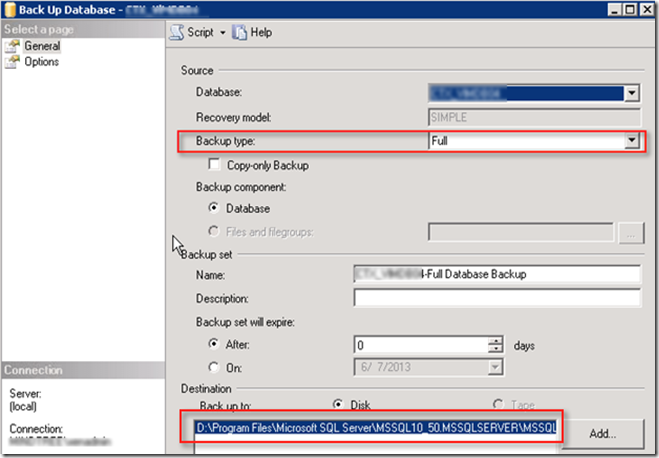
Once the database backup is done , copy .bak file to the mirror server and then on Mirror server choose restore.
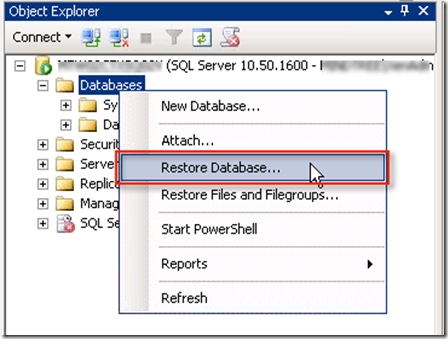
Choose from device and provide the path to the copied .bak file. Make sure under "To Database" you should type exact name as that on "Principal"

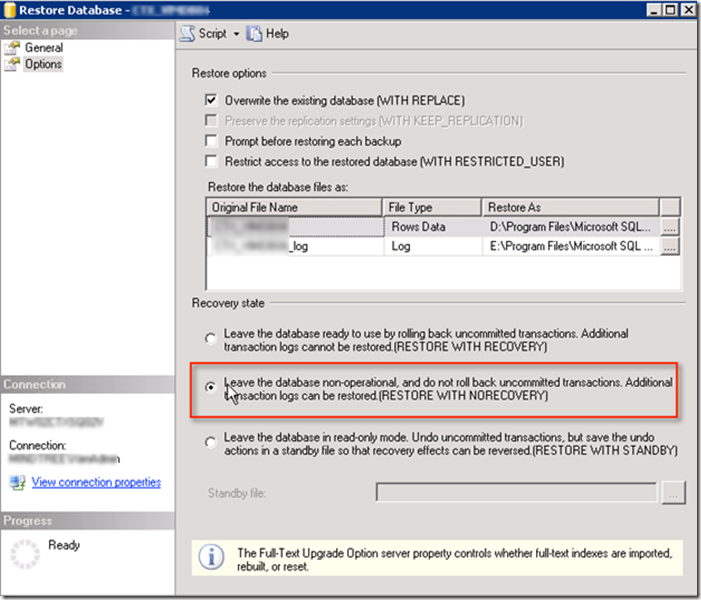
Now very important select option and choose "Leave the database non-operational" . This will insure that DB does auto fail over. Also you can see it shows both the ldf and mdf file at respective location which is how we have setup SQL (Both Data and log on separate drive).
Once finish database status will appear with same name but status will be as "Restoring" . And FYKI this will not change because this is mirroring database is supposed to be setup (Sorry about my limited SQL knowledge).

Now we have to start with mirroring on "Principal database"

And then choose configure security

This will run through Mirroring wizard
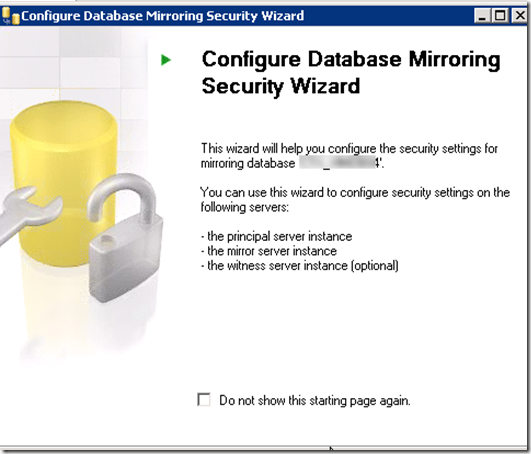
Here make sure witness server is selected to include this
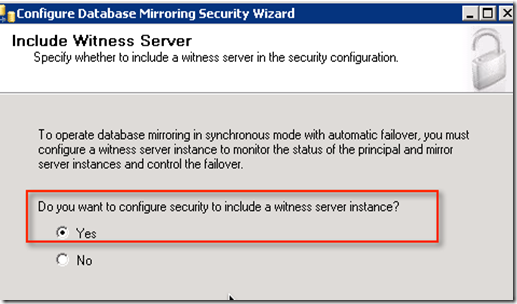
By default Principal and Mirror will be selected.

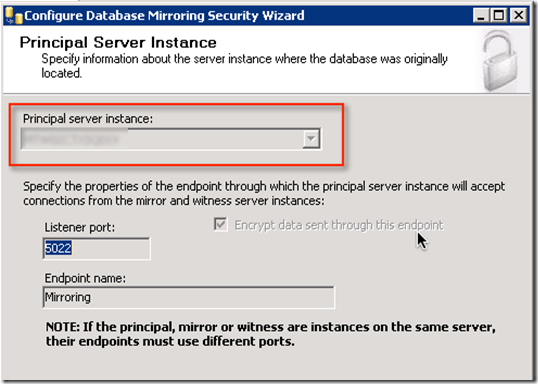
Now Principal server will be selected and port by default will be 5022. IF all the three instance (Mirror/Principal/Witness) are on same server then we need to choose different port. End point name should not be changed because mirroring works using this endpoint.
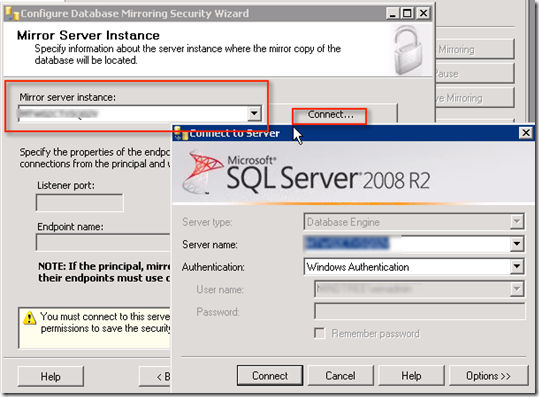
Here it will ask for Mirror instance. Type the mirror SQL server name and then connect. Type port number and endpoint name should be same as principal.
Next screen will ask for Witness server type SQL server name connect it via SQL authentication. Maintain same port number and endpoint name

Type service account for all the 3 SQL instances

This provide nice summary

Here it will configure the end points

And then it will ask to start mirroring

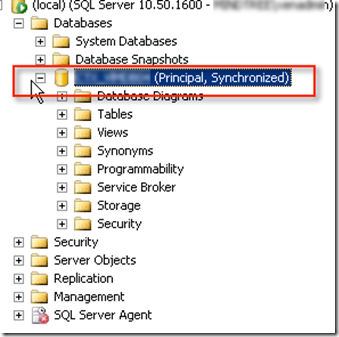
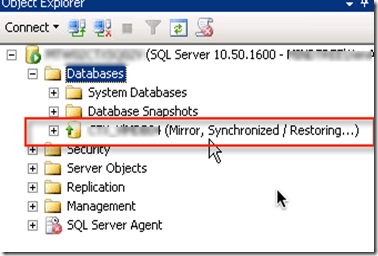
If everything is OK then mirroring will be established for High Safety with Automatic Failover. Status on principal will show as "Principal,Synchronized" where as on Mirror it will show as "Mirror,Synchronized/Restoring"
Next Blog I will discuss about SQL installation


 Posts
Posts



