Tuesday, June 11, 2013

Hyper V VM high availability grayed out

I came across situation where VM created via non SCVMM had HA grayed out (Currently below screenshot is for reference)

image

While doing migration it was throwing error 23001 - cannot create or update a non highly available storage.

image

To fix this perform the migration again using following box "Make this VM highly available"

image

After migration this will become highly available.  

Monday, June 10, 2013

Cannot create or update a non highly available VM -Error (23001)

This is the first time when I have created virtual machine using SCVMM. While creating VM it throws errorimage

This seems like you can not use cluster resource till you define the resource as highly available. After checking  option "Make this virtual machine highly available" VM creation went through.

image

Learning Hyper-V Lesson 10

Learning Hyper-V Lesson 9

I have discussed here how VLAN is created on HP virtual connect and then mapped to Hyper-V host. Once VLAN is created on virtual connect we need to use HP Network Configuration Utility to map this VLAN

image

Every VLAN which is created also create physical interface . Make sure you name it for better identification

image

Post this now we have to create logical interface on Microsoft VMM machine.  Select Fabric and then create a network site.

image

Now select each host and then choose virtual networks. Click on Add then choose network binding as "External" . Point this to the interface created on Hyper-V host

image

Now under hardware choose the interface and map it to logical interface

image

Saturday, June 8, 2013

Learning Hyper-V Lesson 8

Previous lesson 7 we discussed about setting SQL mirroring but then I was not aware what I need to do to start with SQL mirroring.  I decided to blog SQL 2008R2 install steps. Remember I am doing this production for the first time in life :) So pop-in SQL 2008R2 CD/ISO and run the installer.

This will check all the prerequisite 

image

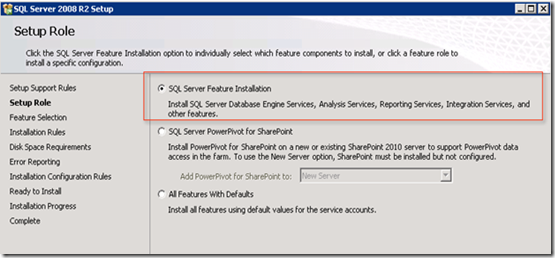
Next it will ask what feature we are trying to install. We are installing just SQL server .
image

We need to insure that we have choose "Integration Service" here

image  

This will check for all the dependencies for feature selected.

image

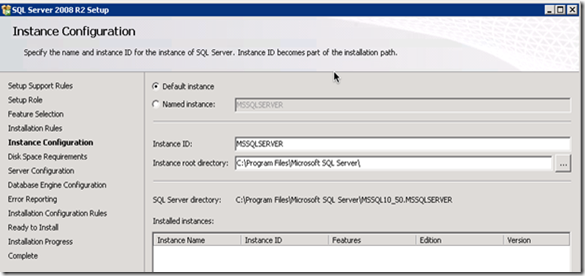
Go with default instance.

image

Now disk space will be calculated for above feature installation.

image

Configure all the service to run with service account.

image

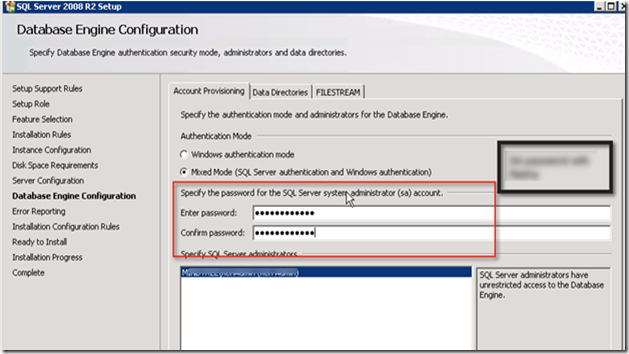
Choose the correct authentication method which you want. Recommended is to use mixed mode.
image

If you wana to place data and log files on separate drives. Everytime when you create new database this will place MDF file and LDF file on respective drive.

image

One more check before installation begun.

image

Finally nice summary for what install is going to be done.

image

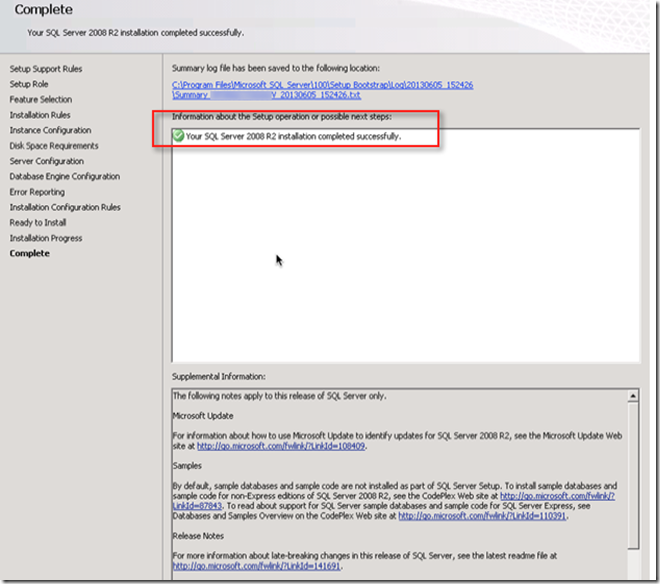
If install is successful it will present message with green.
image