Though there are tons CTX and KB published but I would like to have my own reference based on my own experience. All I need is XenApp and application will be streamed to the XA server rather to the client.So how do we start with. First we should download App -V integration kit from Citrix site. This site is listed under
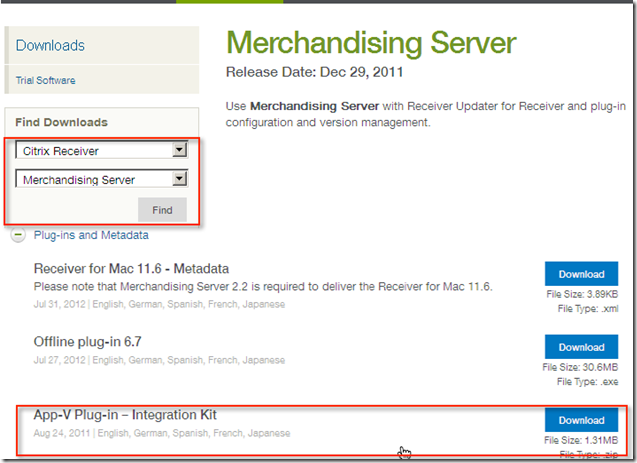
Once downloaded extract it and you can find following files under it.
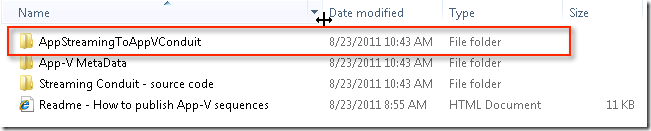
Copy this folder under App V hub. Now this App V hub is noting but where captured applications are kept and location is following

Next thing we need to do is install App-V client on the machine where application is intended to be streamed. In my case application will be streamed to the XenApp box. Remember App -V client for XenApp is different and you need to download App-V client for remote desktops services

After installing App-V client on XenApp box which will be used to published this app, we must insure some settings are populated. During installation we can install with default settings like locations for app hub. Rest all settings can be populated latter

Specifying publishing server is a must.

And yes do not forget to update the following registry setting on all the XenApp box which will be used for App-V streaming

So this all settings are on App -V client which is installed on XenApp box. Same XenApp box will be used for streaming App -V applications.
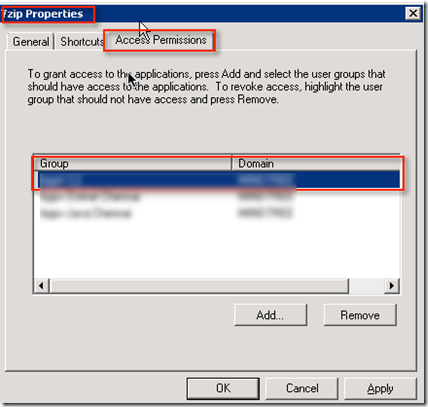
Now we need to provide permissions on Applications as well. Make sure application which we are intended to be publish have XenApp users mapped.
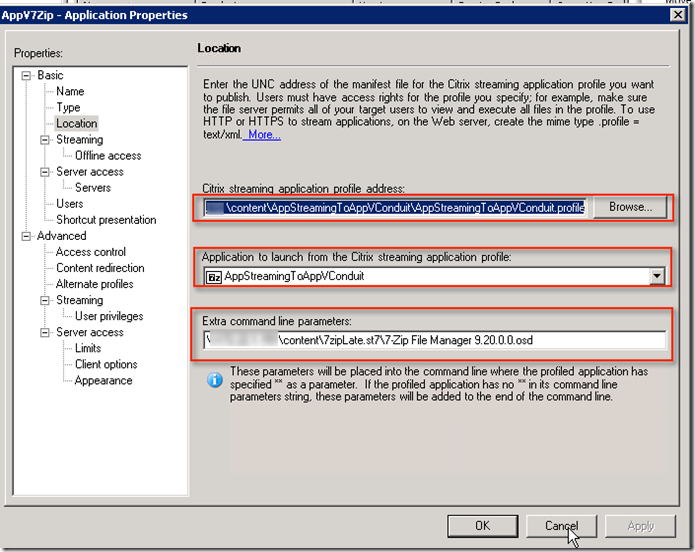
Now we will be publishing this applications via XenApp. I am not going to cover each steps.While publishing apps I am choosing stream to server because I will be using my XA box to stream App -V OSD (Application streaming)

Now I will be selecting locations for applications. So profile address will be pointing App -V conduit which is from App -V integration kit. This will populate profile field. Then we need to type UNC path for application OSD. This is post application has been sequenced via App -V . To sequence App -V follow CTX126082
While selecting servers choose the server where we have installed App -V client which is mention in the beginning. Add the users and then we can see the application via SF portal
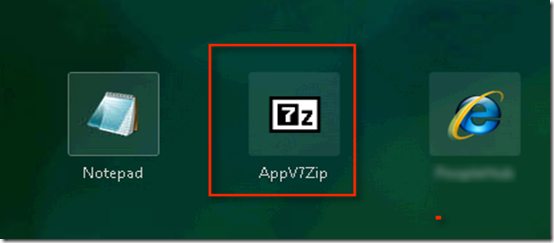
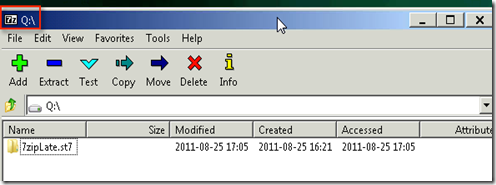
You can observe that here it launch from Q drive
Also on if you notice client status on XenApp server it will be 100% stream

Rest all will leave to you guys to figure out as I am no expert with App -V . And yes feedback as always welcome.


 Posts
Posts



