Saturday, October 10, 2009

FAS2020: The size must be a simple number like '3' or '512'

I was trying to create 1.3 TB of ISCSI lun on FAS2020 NetApp filer. It was throwing below error message. Looks like it has different version of DataONTAP running.

So what I did is I created 1TB of LUN without .0 so like 1TB. I then got below mention successful message.

I then supply the size as 1099529453568*1.3=1429388289639

When I recheck the lun size 1.3 TB.

Wednesday, September 30, 2009

Few Question about ballooning and config max.

One of the guy asked me following question . Just wanted to share with you all

1) what is ballooning in VMWARE

Ballooning

When the ESX host’s machine memory is scarce or when a VM hits a Limit, The kernel needs to reclaim memory and prefers ballooning over swapping. The balloon driver is installed inside the guest OS as part of the VMware Tools installation and is also known as the vmmemctl driver.

When the ESX kernel wants to reclaim memory, it instructs the balloon driver to inflate. The balloon driver then requests memory from the guest OS. When there is enough memory available, the guest OS will return memory from its “free” list. When there isn’t enough memory, the guest OS will have to use its own memory management techniques to decide which particular pages to reclaim and if necessary page them out to its swap- or page-file.

In the background, the ESX kernel frees up the machine memory page that corresponds to the physical machine memory page allocated to the balloon driver. When there is enough memory reclaimed, the balloon driver will deflate after some time returning physical memory pages to the guest OS again.

This process will also decrease the Host Memory Usage parameter

Ballooning is only effective it the guest has available space in its swap- or page-file, because used memory pages need to be swapped out in order to allocated the page to the balloon driver. Ballooning can lead to high guest memory swapping. This is guest OS swapping inside the VM and is not to be confused with ESX host swapping, which I will discuss later on.

To view balloon activity we use the esxtop uitility again from the COS (see below). From the COS, issue the command “esxtop” en then press “m” to display the memory statistics page. Now press “f” and then “i” to show the vmmemctl (ballooning) columns.

clip_image002

On the top we see the “MEMCTL” counter which shows us the overall ballooning activity. The “curr” and “target” values are the accumulated values of the “MCTLSZ” and “MCTLTGT” as described below. We have to look for the “MCTL” columns to view ballooning activity on a per VM basis:

● “MCTL?”: indicates if the balloon driver is active “Y” or not “N”

● “MCTLSZ”: the amount (in MB) of guest physical memory that is actually reclaimed by the balloon driver

● “MCTLTGT”: the amount (in MB) of guest physical memory that is going to be reclaimed (targetted memory). If this counter is greater than “MCTLSZ”, the balloon driver inflates causing more memory to be reclaimed. If “MCTLTGT” is less than “MCTLSZ”, then the balloon will deflate. This deflating process runs slowly unless the guest requests memory.

● “MCTLMAX”: the maximum amount of guest physical memory that the balloon driver can reclaim. Default is 65% of assigned memory.

You can limit the maximum balloon size by specifying the “sched.mem.maxmemctl” parameter in the .vmx file of the VM. This value must be in MB.

2) what is the limitation of Physical Memory of VMWARE / ESX Server

3) what is the limitation of Physical CPU of VMWARE / ESX server

Hardware Processors

Table 2-1 displays the number of physical processors supported per ESX Server host.

Table 2-1. Supported Processor Configurations


Maximum Sockets

Maximum Cores

Maximum Threads

Single core

With hyperthreading

16

16

32

Without hyperthreading

16

16

16

Dual core

With hyperthreading

8

16

32

Without hyperthreading

16

32

32

Virtual Processors

A total of 128 virtual processors in all virtual machines per ESX Server host

Memory

64GB of RAM per ESX Server system

4) What is the Limitation of number of VMs in VMware per ESX server: 128

Error during the configuration of the host: Failed to update disk partition information

I was getting following error when I was trying to create VMFS datastore on ESX host.

Some background:

1. Lun was created on FAS3050 filer.

2. Lun were mapped using S/W ISCSI.

3. Lun were visible under storage adapter.

When I  tried creating datastore I was getting error
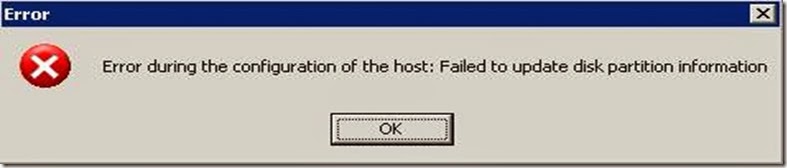
clip_image002

I found following document on VMware site which tells how to fix the error message. In nut shell I did this

1. Run fdisk -l. This will give you a list of all of your current partitions. This is important because they are numbered. If you are using SCSI you should see that all partitions start with /dev/sda# where # is a number from 1 to whatever. Remember this list of number as you are going to be adding at least one more and will have to refer to the new partition by it's number.

2. Run fdisk /dev/sda. This will allow you to create a partition on the the first drive. If you have more than one SCSI drive (usually the case with more than one RAID container) then you will have to type the letter value for the device you wish to create the partition on (sdb, sdc, and so on).

3. You are now in the fdisk program. If you get confused type "m" for menu. This will list all of your options. There are a lot of them. You will be ignoring most of them.

4. Type "n". This will create a new partition. It will ask you for the starting cylinder. Unless you have a very good reason hit "enter" for default. The program will now offer you a second option that says ending cylinder. If you press enter you will select the rest of the space. In most cases this is what you want.

5. Once you have selected start and end cylinder you should get a success message. Now you must set the partition type or it's ID. This is option "t" on the menu.

6. Type "t". It will ask you for partition number. This is where that first fdisk is useful. You need to know what the new partition number is. It will be one more than the last number on fdisk. Type this number in.

7. You will now be prompted for the hex code for the partition type. You can also type "L" for a list of codes. The code you want is "fb". So type "fb" in the space. This will return that the partition has been changed to fb (unknown). That is what you want.

8. Now that you have configured everything you want to save it. To do so choose the "w" option to write the table to disk and exit.

9. Because the drive is being used by the console OS you will probably get an error that says "WARNING: Re-reading the partition table failed with error 16: device or resource busy." This is normal. You will need to reboot the ESX host

10. Once you have rebooted you can now format the partition VMFS. DO NOT do this from the GUI. You must once again log into the console or remote in through putty.

11. Once you have su'd to root you must type in

"vmkfstool -C vmfs3 /vmfs/device/disks/vmhba0:0:0:#"

Were # is the number of the new partition. You shoulder now get a "successfully created new volume" message. If you get an error you probably chose the wrong partition. Do an fdisk - l and choose the number with the "unknown" partition type. Note: IF you have more than one SCSI disk or more than one container the first 0 may need to be a 1 as well.

Problem which I faced:

When I start following last step "vmkfstool -C vmfs3 /vmfs/device/disks/vmhba0:0:0:#"

I was getting error

“Error: Invalid handle”

I was wondering what I was doing wrong. One discussion on VMTM suggested to do the following :

Run the command mkfs.ext3, so I ran the command and got following outout

clip_image004

It basically sits at some inode and never move forward. Host was in hung state. So I decided to check the host by using ILO and found PSOD.

clip_image006

I rebooted and tried the above steps again but still same PSOD.

Finally I logged into filer and found that the volume presented by SAN admin was replicated volume . This volume was snap mirror copy of protected site used for SRM.

Crap ☺ ……

Not sure why he have mapped SRM replicated volume to recovery site.

Client Installation Wizard Error 00004E25 Could not generate a unique name for this computer

When our service desk was trying to push image they were getting error message

Client Installation Wizard Error 00004E25 Could not generate a unique name for this computer

The server AXBMMGT02 could not generate a unique name for this computer

Contact your network administrator for further assistance Administrators should check the remote installation services settings to ensure the automatic computer name option is set correctly. This error may also indicate that the computer policy used to create a unique computer name has reached the maximum number of combinations.

  1. We had rebooted the Ghost server.
  2. Tried Domain Admin ID as suggested in following post
  3. Finally I followed this port and it got resolved.

When I opened the OU I found tons of unique name like this .

Finally I deleted and ask the support engineer to start. That worked.

Monday, September 21, 2009

Storage VMotion from NFS lun to ISCSI lun ?

I had been asked to explore if we can do storage vmotion between NFS share and ISCSI lun.

Guess what, we can do vice versa. So storage vmotion is supported between NFS and ISCSI lun
