Streaming virtual machine on Hyper -V host 2008R2 has its own challenge. No matters what you do , you have to make your PVS streamed multihomed ( Except BDM with Static IP)

BDM with static IP for some reason , I don't like it. So what is the reason and why we need multihomed PVS streamed virtual machine on Hyper-V host. Hyper -V do not support PXE on synthetic adapter. If you try to boot VM via synthetic NIC you will get an error "Unable to find NIC, status code : 0x00860086"

So what is the issue with legacy NIC then ? If you choose legacy network throughput you will get is 100MB.

This is has been nicely explained in one of the Hyper-V design document from Citrix and I guess there is no reason why I should not copy paste it here :)
" Networking Considerations
Microsoft Hyper-V has two types of network adapters. The first is referred to as the “Legacy Network Adapter” in the Hyper-V management console and as the “Emulated Network Adapter” in the VMM Administrative console. The other adapter is referred to as the “Synthetic Network Adapter” in both consoles.
The legacy network adapter is tied directly to the BIOS of the virtual machine. Using the legacy adapter increases processor overhead because device access requires context switching for communication. The legacy network adapter is required for supporting any Pre-boot Execution Environment (PXE) such as that used with Provisioning Services. Contrary to popular belief, the legacy network is not limited in speed to 100MB, but it can run at speeds higher than 100MB if supported by the host’s physical network interface.
11Design Guide | XenDesktop and Microsoft Hyper-V
The synthetic network adapter is loaded by the Host Integration Services after the operating system loads inside the virtual machine. As such, the synthetic network adapter is not available for any PXE operations. Since the synthetic network adapter is integrated directly with the virtual machine, it can leverage the high-speed VMBus for communication and reduce processor overhead by avoiding the context switches that the legacy network adapter requires.
Single Network Adapter Configuration
If Provisioning Services or other third-party PXE imaging delivery applications will not be used in the environment, the legacy network adapter is not necessary. Best performance will be achieved by using a single synthetic adapter.
Conversely, if the processors are not taxed and can easily handle the additional context switches, the legacy network adapter could be the sole network adapter for virtual machine. The network throughput would be the same from the perspective of the virtual machine. The only impact might be on the number of the guest virtual machines supported by a single physical Hyper-V host.
A single network adapter is recommended for simplicity if network performance or fault-tolerance is not a priority for the user environment. If NIC Teaming will not be configured for the adapters servicing the virtual network or if network performance is a key requirement, the dual network adapter approach is recommended
Dual Network Adapter Configuration
With Hyper-V the legacy network card (NIC) is required for supporting PXE with Provisioning Services. After the virtual machine boots, the synthetic NIC has precedence over the legacy network card since the driver sets the route metric for the synthetic NIC to be lower than the legacy NIC.
If using Provisioning Services to deliver the operating system, be sure to run bindcfg from the Provisioning Services installation folder to verify the legacy network adapter is bound to the Provisioning Services device driver before creating a vDisk image. If the Provisioning Services device driver binds to the wrong network adapter, the image will not be able to complete the boot process. More information on using bindcfg can be found in the Appendix.
If using Provisioning Services to stream the operating system, the best performance is achieved by creating two network cards for each virtual machine. The legacy network card will be used to support the PXE booting and all PVS traffic and the synthetic network card will be used for all other network traffic once the operating system has started. If both network cards are enabled in the operating system and on the same subnet, the synthetic card should have preference for all non-PVS traffic. The PVS traffic will always traverse the legacy network card because it is bound to that card. In some situations the legacy network adapter might also be used to transmit data since Windows Networking uses multiple factors to determine the best route for a packet. "
So now it is clear why we need multi-homed PVS streamed target device. So how should we go about designing?
1) Should we have both NIC on same VLAN ?
2) Should we dedicate VLAN for streaming traffic ?
3) What will happen when this streaming VLAN is exhausted ?
4) Is it OK to have dual gateway on same VM?
Most of the network engineer will not like idea of having dual gateway on same VM. There may be some security concern since same PVS will be used for multiple use case scenario. What is the way around then ?
Layer 2 VLAN : Layer 2 VLAN does not have gateway ( Sorry about my limited exposure to networking) . Hence boot VM using Layer 2 VALN then when OS is loaded use synthetic NIC data traffic.

Sounds like a plan ?
To start with
a) make sure you ask network folks to create layer 2 VLAN with big subnet and Trunk this VLAN on PVS server as well as on Hyper-V host. I am using HP blade hence I use same SUS ( Shared uplink set on HP virutal connect) for even PXE traffic.
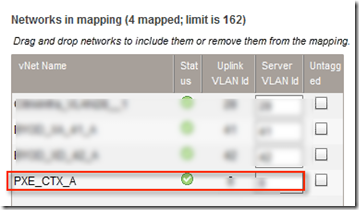
This is trunk set on Hyper -V host but for PVS server we are dedicating NIC and then teaming it.

I am not going to discuss steps for creating VLAN on Hyper -V host. Hope you have read my other post 1 and post 2
b) You will need one DHCP server in same VLAN. For this I have used VM with two NIC one pointing to Layer 2 VLAN and other pointing to Layer 3 or regular VLAN so that I can perform my management. This VM can exist with other infra component or you can use different physical machine or virtual machine from separate environment . Also while installing DHCP server bind service to Layer 2 VLAN

Very important : Make sure DHCP is authorized or else PXE client will not get an IP address. Also just add 66 and 67 option poinit
Make sure you are able to communicate between PVS and DHCP server. Run config wizard on PVS server and select Layer 2 VLAN as PXE VALN

Configure targets and templates to point first NIC on PXE vlan and next NIC on regular VLAN

Before you capture targets set the NIC boot order ( Press Alt under Network connection to get advance options)

So when VM's are booted you will connect to PVS over non gateway VLAN

Enjoy and don't forget to post comment if any


 Posts
Posts



