Friday, July 17, 2009

Installing Performance Overview Plugin for VC2.5 U4

Trying to better understand your virtual machine's utilization?

Well look no further. Virtual Center 2.5 update 4 (released on Feb 23, 2009) has a great new plug-in that summaries all your virtual machines metrics,

from one convenient screen! If you have used the performance charts in Virtual Center, then you know how difficult they can be to work with. Analyzing a virtual machines performance can be a tedious task, especially when trying to understand capacity and doing trend analysis. Until now, the performance charts were the only tools available to monitor system performance. You would have to navigate through several different charts to understand a virtual machine CPU, memory, I/O and network utilization – quite a lot of work to say the least. New in Virtual Center update 4, is a less well known performance "overview" plug-in that makes virtual machine analysis a breeze. Unfortunately the plug-in doesn't come built-in to Virtual Center. Not to worry though, in the following pages, we will walk you through the steps necessary to install the new performance charts and have you analyzing your virtual machines performance in minutes!

Note: This plug-in is only offered in Virtual Center update 4 (build 147633 or greater). If you are not running VC update 4, you must first upgrade your Virtual Center instance. Please see VMware's release notes for details on upgrading.

We'll begin our installation with Java.  If you already have the Java SE development kit installed, you can begin with the section below entitled Configuring Java Environment Variables

Download Java

Download and install the Sun Java SE development kit on your Virtual Center Server. Unless you are an advanced user, select the defaults through the completion of the installer. Take note of the install location as we will need this path later when configuring Java's environment variables.

Configuring Java Environment Variables

We must now set the appropriate environment variables for Java to run correctly on our Virtual Center server.

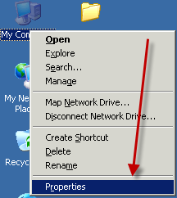
  1. Right-click ‘My Computer’ and click ‘Properties’                   
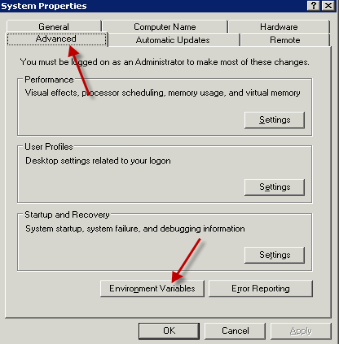
2. From the ‘Advanced’ tab, click ‘Environment Variables’
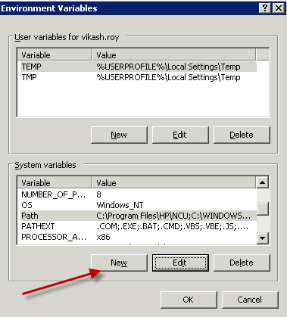
  1. Select the 'Path' system variable and click 'Edit.' Append the location Java was installed from the Download Java section above. If you used the defaults during the installation, this should be ';C:\Program Files\Java\jdk1.6.0_11\bin\'

Note: Ensure to include the ‘;’ – this acts as the delimiter between field elements In the System variable list, click ‘New’
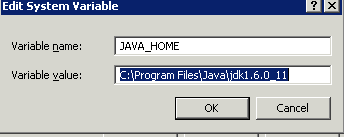
  1. In the 'Variable name', enter JAVA_HOME and in 'Variable value', enter 'C:\Program Files\Java\jdk1.6.0_11' or the path where Java was installed (from the Download Java section above)
Click through the remaining screens selecting the 'OK' option until the changes have been saved.

  1. Click through the remaining screens selecting the 'OK' option until the changes have been saved.

Install Virtual Center Performance Charts

Now that Java is configured, we are ready to install the performance chart plug-in.

  1. Open the command prompt on your Virtual Center server:

Start >> Run >> CMD

  1. Run install.bat from your VMware Virtual Center installation media:

      D:\vpx\perfCharts>install.bat

      **************** VMWare Stats Installer ******************************

      Usage: install vcUserName vcPassword

      vcUserName is the user name you use to log in to the virtual center

      vcPassword is the password you use to log into the virtual center

      *****************************************************************

      D:\vpx\perfCharts>install.bat administrator password

      1. Once the installer has completed, run the Virtual Infrastructure client from your desktop

      2. Click 'Manage Plugins...' from the Plugins menu

      3. On the 'Available' tab, click the 'Download and install...' button on the viClientsScripts plug-in

      4. Once the installation has completed, restart the Virtual Infrastructure client

      5. From the Plugins Manager, click the 'Installed' tab and click the 'Enabled' check box next to the viClientScripts plugin

      6. You can now access the plug-in from the 'Performance Overview' tab in the Virtual Infrastructure client

      7. If you install client from VC2.5 U 4 DVD then there is no need of following above steps

      Once plugin is installed then you can view under VC for host as well as VM

    Tuesday, July 14, 2009

    Web Access of VC4.0

    I discovered new feature of ESX 4.0 that you can manage VC4.0 from web. No it’s not that this feature was not available with ESX3.5 . It was there but there is something which I am excited about

    1. Brand new screen which gives you feel of VC.

    2. Addition of Remote Console which was used for earlier version of ESX2.X

    clip_image002

    So when you try to popup VM it will ask you to install plugin compatible to browser (IE/Firefox)

    3. Using this plugin you can manage VM more effectively then earlier version of ESX. If you recall this screen looks familiar to VMware Player. So did they included that ?

    clip_image004

    4. This is how the web managed VC looks like

    clip_image006

    If you closely watch, you can even see  “Datacenter” where as this  is not available with 2.5U5 . VC 2.5 U5 shows you only folder and VM level hierarchy. Bottom part of web VC also gave you same feel of  VC client.

    That is all I have discovered so far.

    Monday, July 13, 2009

    Hot Memory Add feature of VM on ESX4

    I was trying to figure out Hot Memory add feature in ESX4.0. To enable this feature VM should be shut down. Very important to note that this feature is supported for “windows 2003 EE” not for “Standard edition”.

    Once this feature is enabled then we can increase the memory when VM is powered on.

    You can only add the memory but you cannot decrease the memory .

    Sunday, July 12, 2009

    Not able to add ESX host into Virtual Center

    I was trying to resolve following error message ,this look straight forward?

    No it is not as simple as it looks. So I started troubleshooting this

    1. I restarted vpx/hostd using following command “service mgmt-vmware restart”. This had no effect at all. Tried couple of time without any luck.
    2. We then disconnect the host and tried to reconnect but it was not responding at all.
    3. I was able to ping host by netbios name and IP address as well. Host was up and running.
    4. I was not able to login to the host bypassing VC. This seems to be bigger problem then it has been anticipated.
    5. Surprising part was when I restart mgmt-vmware service all seems to be OK but even though I decided to reinstall the VPX agent

    service mgmt-vmware stop

    service vmware-vpxa stop

    Get the currently installed vpx version:

    rpm -qa grep vpxa

    This should return something like "VMware-vpxa-2.5.0-84767"

    Now remove the vpxa agent:

    rpm -e VMware-vpxa-2.5.0-84767

    This also can be done using following way :

    • On the vCenter Server, look for the following files in C:\Program Files\VMware\Infrastructure\VirtualCenter Server\upgrade

    vpx-upgrade-esx-7-linux-104215

    vpx-upgrade-esx-7-linux-104215.sig

    • copy the files to the ESX host and run the following commands:

    sh vpx-upgrade-esx-7-linux-104215

    service mgmt-vmware restart

    1. Now I thought let me reconnect the host back because that is the time it does push the VC agent back into ESX host. But it did not respond back to reconnect command .
    2. Though this host was in cluster but I will not be able to put host into maintenance mode since it was in disconnected from VC.Now it looks like I really have to reboot the host but I did have live production VM.
    3. I checked the vm status and all were up and running. We decided to check logs under vmfs partition and guess what we were not able to cd into it. This is the problem because vmfs partition does response to “hostd ” and if there is something wrong with vmfs then we can anticipate such kind of problem.

    1. We tried rescanning HBA and it was getting into hung state. At this time we decided to check the health of filer and as soon as I logged in I found following comment

    Can this be the problem ? No this was not the problem. Storage admin added some more space and this message went off. But I was not still able to get my HBA response to rescan.

    1. I then called my onsite engineer to have physical look at a HBA and guess what he told me. He told light at HBA is not blinking. Is my HBA dead (We have 4 port but still using one port ,reason not to be reveled ) ? I asked him to put in next card on the port and light started blinking. I still can not do anything by rescanning. I have to reboot the host. I killed all the VM’s and then rebooted the host.

    This should have been straight forward issue but guess where it turn out to be. Nice troubleshooting experience.

    What to do if “ifcfg-vswif0” file is deleted?

    I usually change host name and IP address by following my earlier blog. What happened this time was not sure but I lost "ifcfg-vswif0" file and host were out of network. I still can see ""Service Console " and vSwitch0 had all the port group. Now this is very confusing situation , if I create new service console ,will I lost all the portgroup . The answer is NO. So I went ahead and created new Service Console port using following command

    [root@server root]# esxcfg-vswif –a vswif0 –i 192.168.1.10 –n 255.255.255.0 –p "Service Console"
    ['Vnic' warning] Generated New Mac address, 00:50:xx:xx:xx:xx for vswif0

    To my surprise I found that all the port group were intact and I got back my "ifcfg-vswif0" file with new MAC address.
