Dell has come up with solution partenring Citrix to virtualize I/O . They name this technology as SR-IOV (Single Root I/O Virtualization ).In this solution, instead of a hypervisor virtualizing an I/O device in the software and sharing that emulated virtual NIC with multiple VMs, a single I/O hardware itself is subdivided logically to appear as 128 virtual NICs. Each NIC is assigned independently and directly to a virtual machine to provide precise per-VM control for connection speed and quality of service.
In HP Virtual Connect , you basically control and divide LOM card on blade into 8 different nic and then it is presented to host . On host you create a virtual switch to share the nic.
Read the complete story here
Saturday, July 24, 2010


Wednesday, July 14, 2010
Ports between Provisioning Server and VM hosted on Xen Server
When you have firewall between Provisioning Server and Virtual Desk in Xen Server host then following ports need to be opened.
Source Group | Destination Group | Protocol/Port | Description | Notes |
Virtual Desktops | DHCP Servers | UDP:66, UDP:67 | DHCP option for TFTP Service and Bootfile name | |
Virtual Desktops | TFTP Server | UDP:69 | Trivial File Transfer | |
Virtual Desktops | PVS Servers | UDP:6910-6930 | Provisioning Services Streaming Service | |
XenApp Servers | DHCP Servers | UDP:66, UDP:67 | DHCP option for TFTP Service and Bootfile name | |
XenApp Servers | TFTP Server | UDP:69 | Trivial File Transfer | |
XenApp Servers | Provisioning Server | UDP:6910-6930 | Provisioning Services Streaming Service | |
PVS Servers | Domain Controllers | TCP:389 | LDAP communication | |
PVS Servers | PVS Servers | UDP:6905-6909 | Inter-server communication | |
PVS Servers | License Server | TCP:27000 and 7279 | Handles check-in and check-out of Citrix licenses | Requires inter-data centre communications |
PVS Servers | PVS Database Server | TCP:1433 | Microsoft SQL Server | |
PVS Servers | XenServers | TCP:443 | Communications with XenServer infrastructure | Required by XenDesktop Setup Wizard. Management traffic is encrypted. |
Management Console | PVS Servers | TCP:54321, 54322 | SOAP |
Monday, July 12, 2010
How to attach RDM on XenServer VM ?
On a Local Storage, iSCSI, or Fibre Channel SR please complete the following:
Retrieve the universal unique Id (UUID) of the SR via the “xe sr-list” command, which can be modified. “xe sr-list | more” will display a page at a time as opposed to the previous command which will scroll off in a long listing. Another option is to filter by type. In the following screenshot, I use the “type=lvm”. Other filters can be “type=lvmoiscsi” for iSCSI, “type=lvmohba” for Fibre Channel.

Once we had gotten the UUID of the SR that we want to create a raw LVM virtual disk image (VDI) we need to use the following command where we use the parameter “sm-config:type=raw”:
xe vdi-create sm-config:type=raw sr-uuid=687a023b-0b20-5e5f-d1ef-3db777ce7ae4 name-label="My Raw LVM VDI" virtual-size=8GiB type=user We see that the command completes when we see a new UUID for the new VDI:556cf57b-8a1d-4211-8daf-6157956cac46

Once complete, we can see that the new VDI has a different label than other VDIs. There will be “LV-<uuid of the VDI> as in the following “lvdisplay | more” command:

Now we can attach this VDI to a new VM or an existing one if needed. Please be advised that when creating and using RAW logical volumes instead of VHD based logical volumes that all ability to take snapshots/clones of virtual disk images.
On the Storage Tab of the SR, you should see a new unformatted VDI:

This can be added to an existing VM via the VMs storage tab, or a new VMs storage tab:

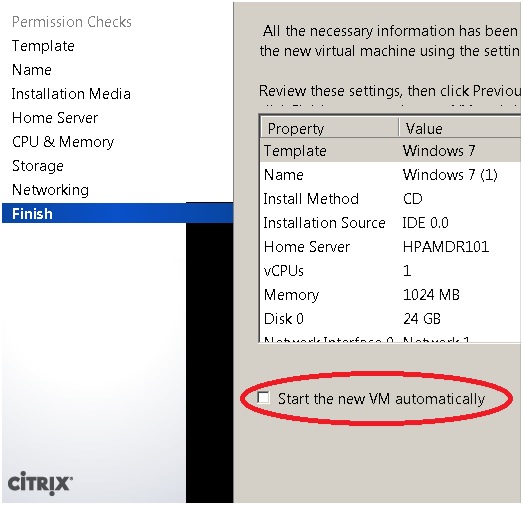
HINT: When using the New VM wizard, please be sure to uncheck the do not start VM automatically on the last step.
Retrieve the universal unique Id (UUID) of the SR via the “xe sr-list” command, which can be modified. “xe sr-list | more” will display a page at a time as opposed to the previous command which will scroll off in a long listing. Another option is to filter by type. In the following screenshot, I use the “type=lvm”. Other filters can be “type=lvmoiscsi” for iSCSI, “type=lvmohba” for Fibre Channel.
Once we had gotten the UUID of the SR that we want to create a raw LVM virtual disk image (VDI) we need to use the following command where we use the parameter “sm-config:type=raw”:
xe vdi-create sm-config:type=raw sr-uuid=687a023b-0b20-5e5f-d1ef-3db777ce7ae4 name-label="My Raw LVM VDI" virtual-size=8GiB type=user We see that the command completes when we see a new UUID for the new VDI:556cf57b-8a1d-4211-8daf-6157956cac46
Once complete, we can see that the new VDI has a different label than other VDIs. There will be “LV-<uuid of the VDI> as in the following “lvdisplay | more” command:
Now we can attach this VDI to a new VM or an existing one if needed. Please be advised that when creating and using RAW logical volumes instead of VHD based logical volumes that all ability to take snapshots/clones of virtual disk images.
On the Storage Tab of the SR, you should see a new unformatted VDI:
This can be added to an existing VM via the VMs storage tab, or a new VMs storage tab:
HINT: When using the New VM wizard, please be sure to uncheck the do not start VM automatically on the last step.
Port required between Xen Desktop setup Wizard and DDC
Port communication between Provisioning Sever 5.6 running on win2k3 and XenDesktop 4.0
SetupToolApplication.exe using the logged in user needs access to CitrixManagementServer.exe via 2514
svchost.exe using <NT AUTHORITY\NETWORK SERVICE> needs access to svchost.exe via 135 for Remote Procedure Call (RPC)
SetupToolApplication.exe using the logged in user needs access to dllhost.exe via <available port> for COM Surrogate
SetupToolApplication.exe using the logged in user needs access to CdsImaProxy.exe via 8000
Above ports are used when XenDesktop setup wizard is ran. If still it fail then use Firewall to track the packet drop for opening ports.
Sunday, July 11, 2010
XenConvert error during P2V: Failed to copy the registry. (0x00000BC5)
While P2Ving Windows 2003 EE Xen Convert were failing while converting registry and log says following
Stopping service MSDTC.
Stopped service MSDTC.
Stopping service WSearch.
Failed to open service WSearch. The specified service does not exist as an installed service. (0x00000424)
Stopping service winmgmt.
Stopped service winmgmt.
Converting volume \\?\Volume{40994a6a-4ac1-11de-9f6e-806e6f6e6963} as a system volume to \\?\Volume{93ec2182-8a5f-11df-a3ca-001d0972ae2e} ...
Using backup functions to copy files.
Converting NTFS boot sectors on volume \\?\Volume{93ec2182-8a5f-11df-a3ca-001d0972ae2e} ...
Converting registry...
Copying hive SECURITY...
Saving hive to \\?\Volume{93ec2182-8a5f-11df-a3ca-001d0972ae2e}\WINDOWS\system32\config\SECURITY...
Copying hive SOFTWARE...
Saving hive to \\?\Volume{93ec2182-8a5f-11df-a3ca-001d0972ae2e}\WINDOWS\system32\config\software...
Failed to save registry key to file \\?\Volume{93ec2182-8a5f-11df-a3ca-001d0972ae2e}\WINDOWS\system32\config\software. An I/O operation initiated by the registry failed unrecoverably. The registry could not read in, or write out, or flush, one of the files that contain the system's image of the registry. (0x000003F8)
Failed to copy hive SOFTWARE.
Restarting special services...
Volume to Volume stopped at Thursday, July 08, 2010 13:07:42
Physical to Disk stopped at Thursday, July 08, 2010 13:07:42
Dismounting VHD...
Physical to VHD stopped at Thursday, July 08, 2010 13:09:46
Physical to OVF Package stopped at Thursday, July 08, 2010 13:09:46
Physical to XenServer stopped at Thursday, July 08, 2010 13:09:46
Failed to copy the registry. Cannot create a file when that file already exists. (0x000000B7)
To give little background ,P2V was attempted over 100MB Ethernet speed. Once we start getting above error , I decided to do some googling around web and found posting into Citrix form and found that someone else also got that error .
As per posting registry file for software was around 66MB.
I decided to perform one more attempt on local drive instead of network drive. This time it was successful in conversion but during OVF import it failed with some network related error
Source is F:\Xenconvert\GUREHDB02.ovf.
Destination is 10.152.43.50.
OVF to XenServer started at Friday, July 09, 2010 00:43:53
Validating OVF Package...
FWD: Warning:2010.7.9.0.43.54,209: Disk linkage [File to RASD] does not exist: GUREHDB02.pvp
OVF Package is valid.
Importing OVF Package...
FWD: Debug:2010.7.9.0.43.55,943: OVF.FindSystemIds completed, 1 found
FWD: Debug:2010.7.9.0.43.56,803: OVF.FindRasdByType completed, 1 found
FWD: Debug:2010.7.9.0.43.56,803: OVF.FindRasdByType completed, 1 found
FWD: Debug:2010.7.9.0.43.57,365: Import.Process: DefineSystem completed (GUREHDB02)
FWD: Debug:2010.7.9.0.43.57,412: Import.SetIfDeviceIsBootable: Using HostResource to find Disk
FWD: Debug:2010.7.9.0.43.57,584: Found file GUREHDB02.vhd using VhdStream
FWD: Debug:2010.7.9.0.43.57,740: Import.UploadRawVDI Enter
FWD: Debug:2010.7.9.0.43.57,740: Import.UpdoadRadVDI SRUUID: a779a980-adb7-8474-91ad-65dc9f7a4089
FWD: Debug:2010.7.9.0.43.57,740: Import.UpdoadRadVDI Label: GUREHDB02
FWD: Debug:2010.7.9.0.43.57,740: Import.UpdoadRadVDI Capacity: 26601324544
FWD: Debug:2010.7.9.0.43.59,693: Import.UploadRawVDI::VDI Created
FWD: Debug:2010.7.9.0.43.59,709: Connect To: 10.152.43.50:80
FWD: Debug:2010.7.9.0.43.59,725: Request: PUT /import_raw_vdi?session_id=OpaqueRef:33e1b06e-7526-3241-9070-7a7e2c60b526&task_id=OpaqueRef:f935cd8f-1604-4d99-822b-0771bc936273&vdi=OpaqueRef:4c0e5b86-4d82-460f-3d53-45d355331834 http:/1.0
FWD: Debug:2010.7.9.0.43.59,787: 200 OK
FWD: Error:2010.7.9.0.44.50,521: OVF.Tools.Http.SendData FAILED Unable to write data to the transport connection: A connection attempt failed because the connected party did not properly respond after a period of time, or established connection failed because connected host has failed to respond.
FWD: Error:2010.7.9.0.44.50,802: OVF.Tools.Http.Put: Exception: System.IO.IOException: Unable to write data to the transport connection: A connection attempt failed because the connected party did not properly respond after a period of time, or established connection failed because connected host has failed to respond. ---> System.Net.Sockets.SocketException: A connection attempt failed because the connected party did not properly respond after a period of time, or established connection failed because connected host has failed to respond
at System.Net.Sockets.Socket.Send(Byte[] buffer, Int32 offset, Int32 size, SocketFlags socketFlags)
at System.Net.Sockets.NetworkStream.Write(Byte[] buffer, Int32 offset, Int32 size)
--- End of inner exception stack trace ---
at XenOvfTransport.Http.SendData(Stream http, Stream filestream, String p2vUri, Int64 filesize)
at XenOvfTransport.Http.Put(Stream readstream, Uri serverUri, String p2vUri, NameValueCollection headers, Int64 offset, Int64 filesize, Boolean isChunked)
FWD: Error:2010.7.9.0.44.50,802: Import.UploadRawVDI Http.Put FAILED Unable to write data to the transport connection: A connection attempt failed because the connected party did not properly respond after a period of time, or established connection failed because connected host has failed to respond.
FWD: Error:2010.7.9.0.44.50,802: Import.RemoveVDI: Something went wrong deleting associated VDI
FWD: Error:2010.7.9.0.44.50,943: Import.RemoveVDI FAILED VDI_IN_USE, Auto delete failed, manual deletion of storage entry required.
FWD: Error:2010.7.9.0.44.50,943: Import.ImportFileProc::Exception VDI_IN_USE
FWD: Debug:2010.7.9.0.44.50,943: Import.ImportFileProc (worker thread) completed
FWD: Debug:2010.7.9.0.44.50,943: Import.AddResourceSettingData, recevied autoevent, continuing
FWD: Error:2010.7.9.0.44.50,943: Import.AddResourceSettingData, Failed on import, remove vm.
ImportFile failed
Failed to import the OVF Package.
OVF to XenServer stopped at Friday, July 09, 2010 00:44:51
Physical to XenServer stopped at Friday, July 09, 2010 00:44:51
This gives us enough reason to look at network side. We decided to use Arconis and copy the file over CISF share. During copy it failed with error “Path to Deep”. Network team looked at error on Switch side and also setting was done to 100MB while host side it was set to “AUTO”.
In general host side and switch side setting should be the same. Setting was changed and we reran XenConvert tool to import OVF and it was successful.
Subscribe to:
Posts (Atom)


 Posts
Posts



