Wednesday, July 28, 2010

Getting vDisk properties via MCLI

C“Virtual disk status” information can be extracted from the systray of the vDisk .
image
This can also be extracted via MCLI command
C:\Program Files\Citrix\Provisioning Services>mcli get disk -p diskLocatorId=1f4
bc0f9-8d18-4cee-88e9-241684a958d3
Executing: Get DISK
Get succeeded. 1 record(s) returned.
Record #1
    class:
    imageType:
    diskSize: 10485760000
    writeCacheSize: 0
    autoUpdateEnabled: 0
    activationDateEnabled: 0
    adPasswordEnabled: 1
    haEnabled: 0
    printerManagementEnabled: 0
    writeCacheType: 1
    activeDate: 2010/05/03
    longDescription:
    serialNumber: 62cd53ea-5448-11df-8000-000000000000
    date: 04/30/2010  12:06:11
    author:
    title:
    company:
    internalName: c:\pvs\srv2k3templ
    originalFile: c:\pvs\srv2k3templ
    hardwareTarget:
    majorRelease: 1
    minorRelease: 0
    build: 1

Source: CTX121333

Tuesday, July 27, 2010

Nicbonding issue with XenServer 5.5 , when connected to resource pool

If a pool of servers is created, and NIC 0+1 is bonded with the management interface running on this bonded network. All configuration steps were done from XenCenter
Problem :A new XenServer is added to the pool, the NICs are un-bonded before adding it to the pool (but the same problem exists even if they are bonded).The new XenServer is added to the pool and it picks up the pool network configuration however the Bond0+1network shows as unknown rather than connected.
Below host GMHO-PXEN002 host has been added into resource pool and under “management interfaces” you can see it as “Network”
image
But for host GMHO-PXEN001 both the “Management Interfaces” are clearly visible with correct bond
image
At the pool level only three “Management Interfaces ” are visible.
image
I then checked the file under /proc/net/bonding on host 001 and found that there are two bond file as per two bond existence
image
I then checked the file under host 002 and found that only one file is there though there are two bonds
image
Resolution
Remove the Bond0+1 network from the pool (which obviously affects all servers) and create the bond 0+1 again. Now this bond shows as connected on all XenServers.
To cross check I checked the file under host 002 and found that there are two files now
image
At the host level also it is shown correctly
image

Saturday, July 24, 2010

Dell answer to HP Virtual Connect :SR-IOV

Dell has come up with solution partenring Citrix to virtualize I/O . They name this technology as SR-IOV (Single Root I/O Virtualization ).In this solution, instead of a hypervisor virtualizing an I/O device in the software and sharing that emulated virtual NIC with multiple VMs, a single I/O hardware itself is subdivided logically to appear as 128 virtual NICs. Each NIC is assigned independently and directly to a virtual machine to provide precise per-VM control for connection speed and quality of service.

In HP Virtual Connect , you basically control and divide LOM card on blade into 8 different nic and then it is presented to host . On host you create a virtual switch to share the nic.

Read the complete story here

Wednesday, July 14, 2010

Ports between Provisioning Server and VM hosted on Xen Server

When you have firewall between Provisioning Server and Virtual Desk in Xen Server host then following ports need to be opened.
Source Group
Destination Group
Protocol/Port
Description
Notes
Virtual Desktops
DHCP Servers
UDP:66, UDP:67
DHCP option for TFTP Service and Bootfile name

Virtual Desktops
TFTP Server
UDP:69
Trivial File Transfer

Virtual Desktops
PVS Servers
UDP:6910-6930
Provisioning Services Streaming Service

XenApp Servers
DHCP Servers
UDP:66, UDP:67
DHCP option for TFTP Service and Bootfile name

XenApp Servers
TFTP Server
UDP:69
Trivial File Transfer

XenApp Servers
Provisioning Server
UDP:6910-6930
Provisioning Services Streaming Service

PVS Servers
Domain Controllers
TCP:389
LDAP communication

PVS Servers
PVS Servers
UDP:6905-6909
Inter-server communication

PVS Servers
License Server
TCP:27000 and 7279
Handles check-in and check-out of Citrix licenses
Requires inter-data centre communications
PVS Servers
PVS Database Server
TCP:1433
Microsoft SQL Server

PVS Servers
XenServers
TCP:443
Communications with XenServer infrastructure
Required by XenDesktop Setup Wizard.  Management traffic is encrypted.
Management Console
PVS Servers
TCP:54321, 54322
SOAP

Monday, July 12, 2010

How to attach RDM on XenServer VM ?

On a Local Storage, iSCSI, or Fibre Channel SR please complete the following:
Retrieve the universal unique Id (UUID) of the SR via the “xe sr-list” command, which can be modified. “xe sr-list | more” will display a page at a time as opposed to the previous command which will scroll off in a long listing. Another option is to filter by type. In the following screenshot, I use the “type=lvm”. Other filters can be “type=lvmoiscsi” for iSCSI, “type=lvmohba” for Fibre Channel.
NewImage.jpg
Once we had gotten the UUID of the SR that we want to create a raw LVM virtual disk image (VDI) we need to use the following command where we use the parameter “sm-config:type=raw”:
xe vdi-create sm-config:type=raw sr-uuid=687a023b-0b20-5e5f-d1ef-3db777ce7ae4 name-label="My Raw LVM VDI" virtual-size=8GiB type=user We see that the command completes when we see a new UUID for the new VDI:556cf57b-8a1d-4211-8daf-6157956cac46
NewImage.jpg
Once complete, we can see that the new VDI has a different label than other VDIs. There will be “LV-<uuid of the VDI> as in the following “lvdisplay | more” command:
NewImage.jpg
Now we can attach this VDI to a new VM or an existing one if needed. Please be advised that when creating and using RAW logical volumes instead of VHD based logical volumes that all ability to take snapshots/clones of virtual disk images.
On the Storage Tab of the SR, you should see a new unformatted VDI:
NewImage.jpg
This can be added to an existing VM via the VMs storage tab, or a new VMs storage tab:

NewImage.jpg

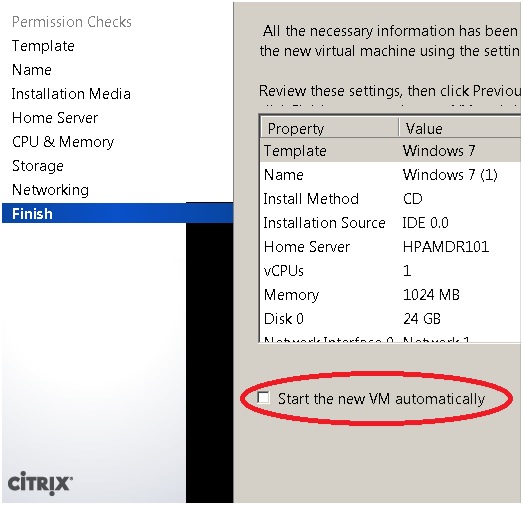
HINT: When using the New VM wizard, please be sure to uncheck the do not start VM automatically on the last step.
NewImage.jpg
