In this blog I will explain the way to integrate Verint Screen recording solution with XenApp. Solution from Verint is used widely by call center where agent desktop and voice is recorded simultaneously . While these solution is meant for physical desktop but Verint does support this on XenApp. Citrix does have its own screen recording solution but it does not record the voice like Verint does. Not have a good knowledge but looks like it has integration with extension as well as desktop that way anyone can make out what agent is doing while talking over the phone.
Solution from Verint is called as "Impact 360 Version 10 QM & Analytics " . As per support following XenApp version is supported :

First agent is install the agent on XenApp box and before the that there is pre-requisite is following

Now run the U100_8447.msi to install the agent

Choose the require module to install
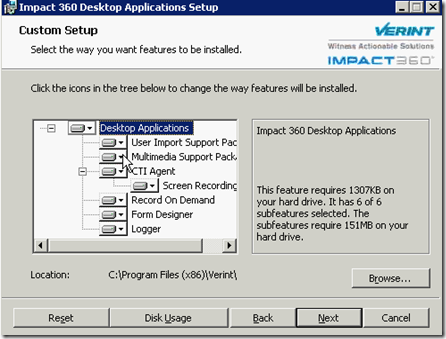
From XenApp prospective "Thin Client Environment " should be checked
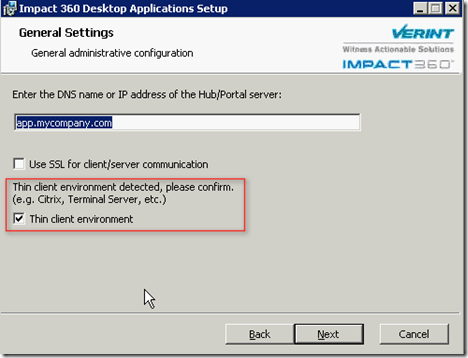
Provide the require setting, from XA prospective does not make difference .

Provide the require setting for ILA.
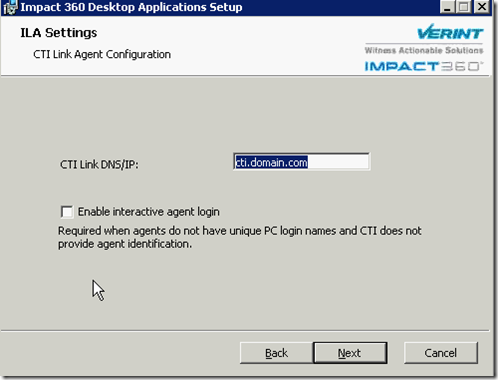
Go with default unless required changes.

This will start the installation of Verint impact agent .

Once the agent installation is completed make sure XenApp box is rebooted

Now after the installation is completed make sure few testing is performed. Login with the XenApp box and execute ILAQueryApp.exe. Type the any user agent login ID with domainname\username along with PBX ID. This query should throw result
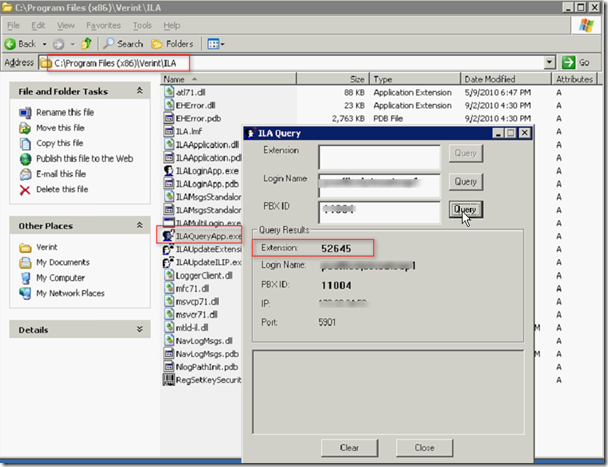
Run the IntelliLink Analyzer and make sure it should show success for the same extension. It will also show Screen IP.

At the same time if task manager is launched on XenApp box , RFBAgent.exe/ILALoginApp.exe should be running under every user ID. This will ensure that recording will happen.
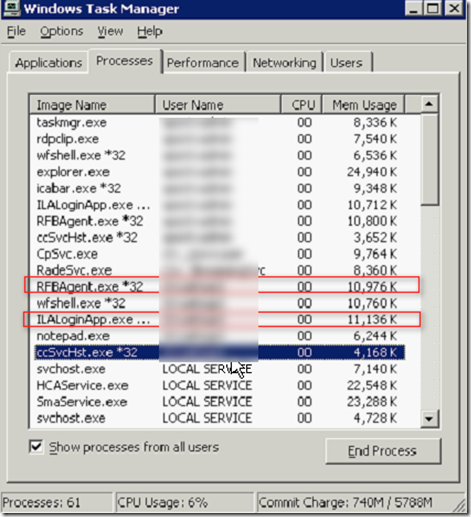
If the XenApp is published as Hosted Shared Desktop then nothing is required because each login will execute above two executable for each user. Now if recording as to be done for published application , it can be done in two way :
Option 1 – Automatic in Seamless Mode
If we have to execute this two executable for each application launch , following needs to be done
1 From the Impact 360 Version 10 Installation CD, from the Tools\Citrix folder, open the Citrix.zip and copy IlaApp.cmd to the %WINDIR%\system32 folder.
2 Via Notepad, open UltraApp.cmd and verify that the directory path points to the ILA installation path. If not, modify the path accordingly.
3 Configure Anti-Virus not to remove IlaApp.cmd.
4 Run IlaApp.cmd and verify that the ILALoginApp, RFBAgent.exe and HostedApp processes appear in the Windows Task Manager; then end the processes.
5 From the Impact 360 Version 10 Installation CD, from the Tools\Citrix folder, open the Citrix.zip and run InstallILAforsharedapp.vbs to update the following registry keys:
HKLM\SOFTWARE\Microsoft\WindowsNT\CurrentVersion\Winlogon\AppSetup
HKLM\SYSTEM\CurrentControlSet\Control\Citrix\wfshell\TWI\LogoffCheckSysModules
These updates add RFBAgent.exe and Ilaloginapp.exe to the list of executables that seamlessly start upon a user's login and terminate upon logoff, thus ensuring the proper functioning of the CTI Agent.
6 Export the following registry key: HKLM\SOFTWARE\Microsoft\Windows\CurrentVersion\Run\ILA (for rollback purposes).
7 Delete the following registry key: HKLM\SOFTWARE\Microsoft\Windows\CurrentVersion\Run\ILA.
8 Verify the updates as follows:
a. On a Citrix client with no open session, run one of the published applications.
b. On the Citrix server, check the session information and verify that the RFBAgent.exe and ILALoginApp, processes appear in the Windows Task Manager.
c. From the same Citrix client session, run a second published application.
d. On the Citrix server, look at the session information and verify that the RFBAgent.exe, and ILALoginApp processes do not appear twice in the Windows Task Manager.
e. On the client side, close the second application.
f. On the Citrix server, verify that the session does not end on the Citrix server side and that ILA and RFB continue running.
g. On the client side, close the first application and verify that the session ends on the Citrix side and ILA and RFB stop running.
Apart of from above step even putting a login script for each user to run RFBAgent.exe, and ILALoginApp.exe. Also all the three executable Apps + (RFBAgent.exe, and ILALoginApp ) in a batch file and publishing the batch file will allow the seamless automatic launch of the agent + application
Option 2- Manually trigger the applications after login into thin client.
When the shared session mode cannot be used for all applications that need to be recorded (for example, a Citrix Farm where each server runs specific applications), you can provide a folder with application shortcuts. The user will then be able to activate Impact 360 V10 QM & Analytics applications by using the shortcuts residing in that folder. Note that this method enforces the manual activation of applications that are normally activated automatically upon login.
In below example before launching notepad , Verint ILA/Verint SAA should be executed

That's it for today and reference are :
A) Impact 360 V10 Desktop Installations User Guide Ver M
B) Impact 360 V10 Desktop Installations User Guide Ver V
C) Impact 360 V10 Desktop Installations User Guide Ver K


 Posts
Posts



