Tuesday, May 8, 2012

Protocol Driver Error and SSL Error 29 : Proxy Access Denied

While launching desktop via AGEE , I started getting "Protocol error "

image 

Under Virtual Server STA (DDC) were showing up and running

image

On web interface setting "Secure Access Setting"  all the  STA has been listed .

image

Desktop shows session has been initiated

image

After  un-checking  "Enable Session reliability " we gone ahead with Protocol driver error message

image

But now we started getting SSL 29 error . Though we were launching XenDesktop we were seeing XenApp related error.

image

From NetScaler we tried pining box and found box were reachable . But found that routing were undefined. We created IP subnet and then defined the VLAN .This allowed to launch the XenDesktop.

Tuesday, April 3, 2012

Only 1 path active on XS which is part of the pool

While creating new SR on XS 6.0.2 on EMC VNX 5500 will show one host with 1 active path rest all have all the active path . When multipath -ll is run it will also show one path . This shows that all the path is not having access to the lun .

From the host which has an issue logoff all the active path

iscsiadm -m node -U all  and then logback in iscsiadm -m node -L all.

Restart the multipathd service /etc/init.d/multipathd restart. This will bring all the path active on the host.

image

Using ISCSIADM on XenServer 6.0.2: Message "ISCSIADM is not running " could not start Automatically

Installed brand new XenServer and try to run ISCSIADM command it will throw message  "iscsid is not running. Could not start it up automatically using the startup command in /etc/iscsi/iscsid.start

image

To  fix it just run new SR wizard for ISCSI over LVM and

image

then try to run the discovery again it will list all the targets . This test is conducted on EMC VNX 5500. This process basically make  open-iscsi service is called by and configured by XAPI. When using the New Storage wizard, it will create files /etc/iscsi such as initiator name, send_targets directory. image

In order to create new SR on VNX 5500 for XenServer 6.0.2 , you need to ensure that all the targets are logged in. The process is A) Run SR wizard but do not create SR 2) Logged all the targets 3) Create the SR again using SR wizard   . This has been explained in following blogs of mine

Thanks to my college and open-iscsi.

Dell OpenManage Server Administrator (OMSA) installation on XenServer 6.0.2

In order to install OMSA 6.5 on XS 6.0.2 , we need to get latest ISO from Dell site. Connect this ISO to the Dell Server via virtual CD ROM

image

Mount the CD-ROM on XenServer and run the install.sh script to start OMSA agent on XS.

image

This will install the require package

image

Insure the ports are open. By default installation does open the require ports

image

Start the server service

image

And point the URL to https://<HostIP>: 1311

image

Saturday, March 31, 2012

Configure HP Blade ,C7000 and HP Virtual Connect Manager (VCM) for XenServer infrastructure.

HP C7000 chassis can hold different blade model and for that refer to HP site . Here I am going to explain how HP Blade Center can be designed for XenServer . XenServer require 1 management NIC . This NIC can not be tagged at XenCenter level . Hence at the switch side this needs to be defined as trunk with access for management VLAN (Incase there is a dedicated VLAN ). Its a good practice to dedicate a VLAN for XenServer host.

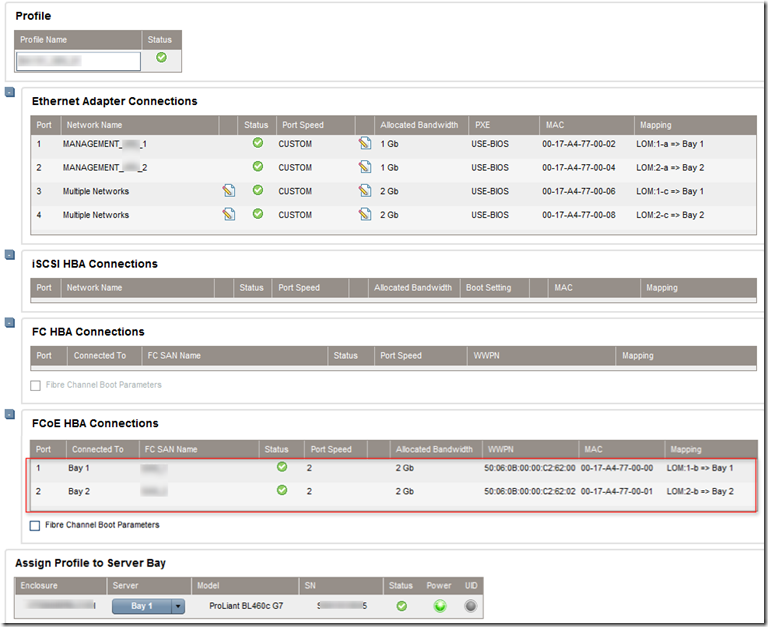
Now out of 8 nic (by default Blade BL 460 G6 sever can give 8 NIC with nic partitioning . These 8 nic can be divided to be used as FcOE or ethernet . In below example I am using two NIC for management interface , two NIC for VM traffic and other two for FcOE. Here you can see there is last leg where FcOE is installed.
image

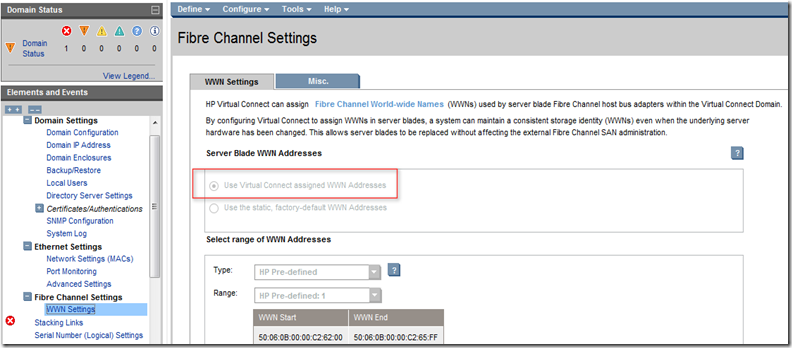
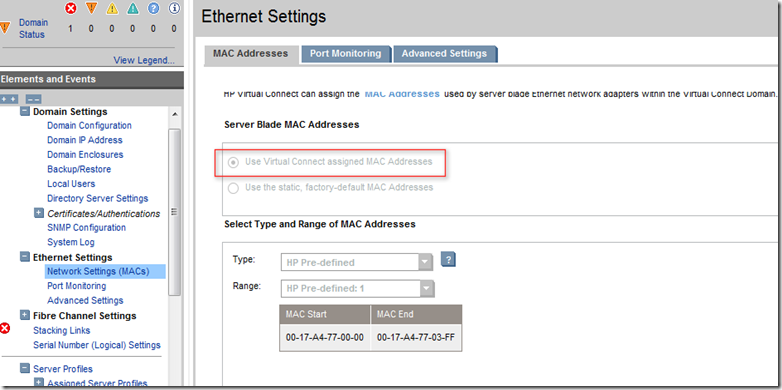
To start we need to ensure all the MAC as well as WWN is set to .
image

This is for Fibre network or FcOE.

image

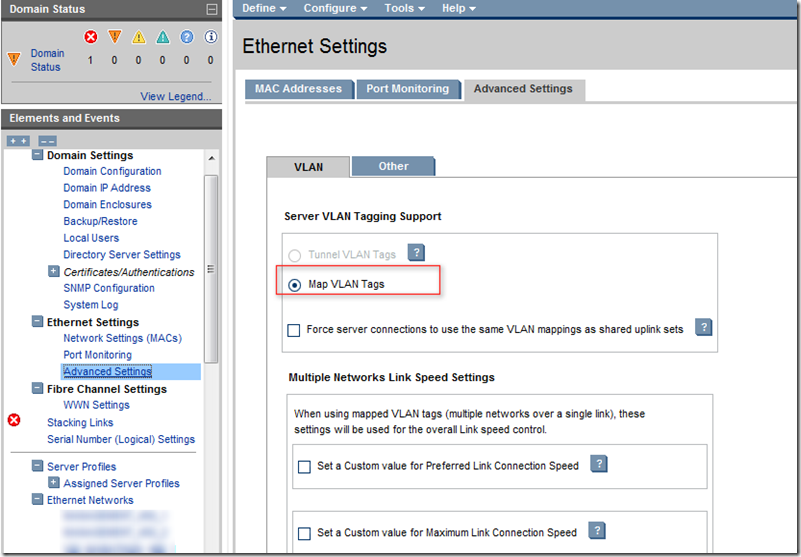
Other setting is on advanced settings : Here we should use "Map VLAN Tags". Also we set the speed at server profile rather than global level.
image

Next is to create a uplink for ether network . This is called shared uplink set. There will be two shared uplink set as there are two switch . Each shared uplink set can have ports from respective switch and can not span across other switch. In other word we can have ports from single VCM. This will create one bundle provided on core switch there is a ether channel or LACP is done on the core switch. image

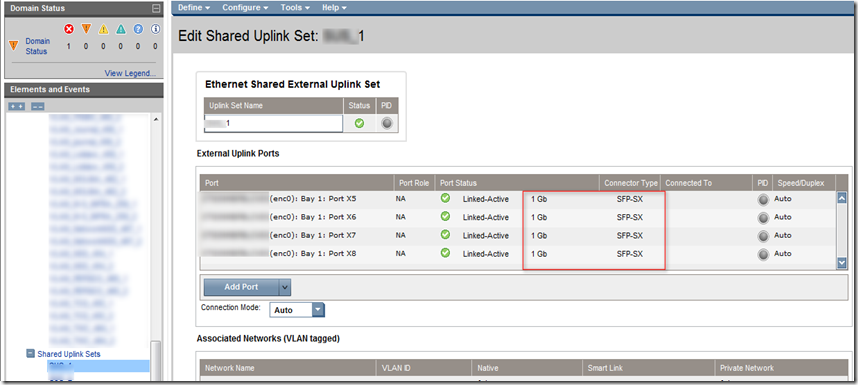
After all the ports are mapped this will be look like this . Here four 1 Gb ports has been mapped to one share uplink . Hence uplink bandwidth from one VCM is 4Gb. 
image

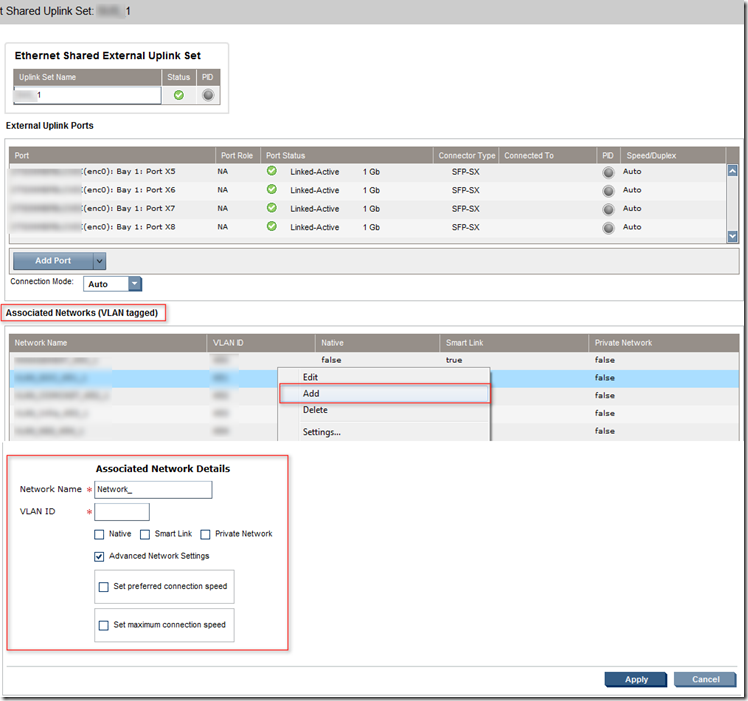
For creating VLAN's we need to create on each of the SUS (Shared uplink Set) . Right click as shown below and select add. This will prompt for network details We need to be careful with tagging VLAN. Again set the network speed at NIC level.
image

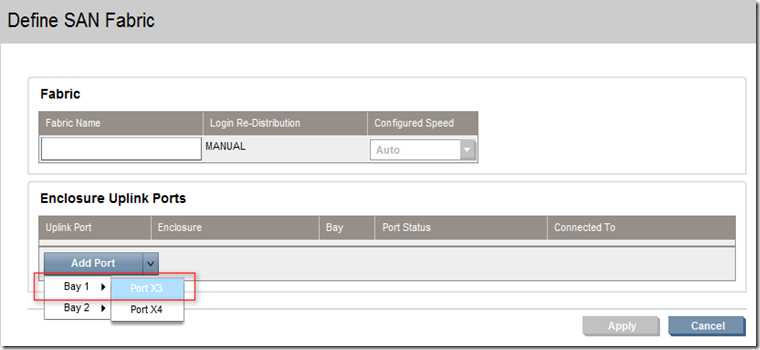
Now define shared uplink for SAN. Assigned the port based connectivity.
image

Once SUS is defined for SAN this is how it looks like . Here each 2Gb port will be bundled to create 4Gb uplink to storage.

image

Now once these two SUS is created each for Ethernet as well SAN this should be mapped to the profile. "Multiple Networks " will allow you to create multiple VLAN on single bond or link . These VLAN can be selected as shown below after creating on each of the SUS. You can also see LOM in each BAY1 and BAY 2. Hence each blade will have 4 NIC on BAY 1 and 4 NIC on BAY2.

image

This is how the Ethernet Networks looks like when it is mapped . Here you can see each network is mapped to each of the server profile.image

On XenServer , this is how looks like. Here you can see management NIC is set to 1GB where as other NIC is set to 2GB. 

image

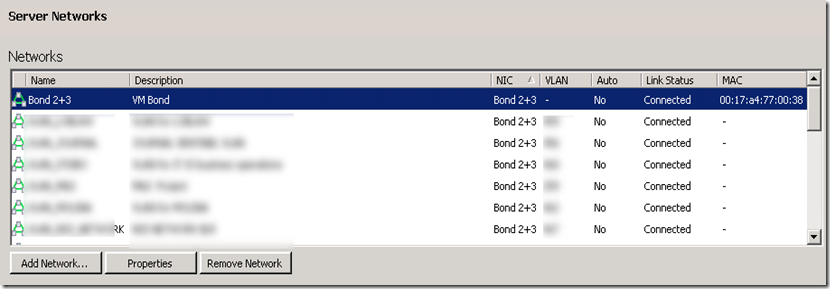
We have created a Bond 2+3 for VM network and this is how VLAN is mapped .
image

That is all for now, hope you enjoyed