Verint playback don't play via Hosted shared desktop while it play via RDP session . When it played via RDP session it will show the wavelength like this

But when it played via Hosted share desktop then it is played like this

For this to work we have to make sure we have compatible IE at Agent and Server side . Following are the setting suggested by Verint
Impact 360 QM & Analytics has been tested and is now fully compatible with Microsoft Windows 7 32-bit Operating System, Microsoft Windows 7 64-bit Operating System and Internet Explorer 8 (IE8) Compatibility mode.
Compatibility mode can be set using one of the following ways:
• Setting Client Website IE8 Compatibility View
• Setting Server Website IE8 Compatibility View
Record on Demand (ROD) was modified so that the latest Desktop installation can work with Windows 7 32-bit and Windows 7 64-bit successfully. This latest version ensures that all desktop applications run in the Windows 7 32 bit Operating System and IE8 Compatibility mode environment.
IE8 Compatibility Mode
Microsoft enables you to work with IE8 in Standard mode and in Compatibility mode. Impact 360 QM & Analytics V10 only supports IE8 when IE8 is working in Compatibility mode.
IE8 Compatibility mode allows content designed for previous web browsers to still function properly when using the Internet Explorer 8 browser. Although sites on the public internet display in the IE8 Standards Mode by default, switching in and out of Compatibility View (between IE7 and IE8 modes) happens automatically without a browser restart.
A new user interface button () located in the navigation bar just to the right of the address bar (next to the refresh button) controls the Compatibility View feature.
To work in Compatibility mode, click the Compatibility View button as shown in the following screen:
 Setting Client Website IE8 Compatibility View
 Each client can set IE8 Compatibility mode by adding or removing websites, to the compatibility view using the Internet browser.
To add or remove websites to the Compatibility View:
1 From the browser click Tools > Compatibility View Settings. The Compatibility View Settings window displays.
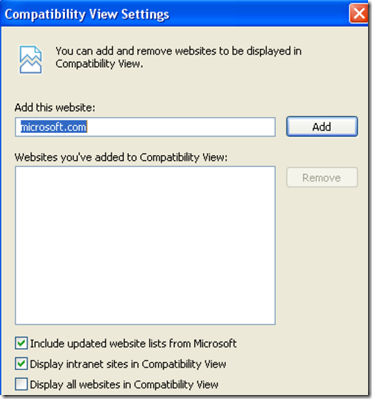
2 Enter the name of the website you want to add in the Add this website field and click Add.
Setting Server Website IE8 Compatibility View
By setting the Hub server Impact 360 Portal websites to IE8 Compatibility view clients can view the Portal content without having to manually add or remove websites to the browser Compatibility view.
The following Portal websites must be set on each Hub server with IIS installed:
•Ultra
•businessobjects
•FillOut
•FormManagementWS
•MdalWS
•SpeechAnalytics
•Toolbox
•UserManager
•UltraGlobalizer
To set properties of Portal websites on Hub servers:
1 Right click My Computer and select Manage. The Computer Management window displays.
2. From the Computer Management (Local) tree on the left pane, select Services and Applications>Internet Information Services (IIS) Manager>Web Sites>Default Web Site.
3 . Right click on the Ultra website and select Properties. The Ultra Properties window displays.
NOTE
The following websites can also be configured in the same way from the Default Web Site node: businessobjects, FillOut, FormManagementWS, MdalWS, SpeechAnalytics, Toolbox, UserManager, UltraGlobalizer.
4 From the HTTP Headers tab click Add. The Add/Edit Custom HTTP Header window displays.

5 . In the Custom header name field enter the following name: X-UA-Compatible
6 . In the Custom header value field enter the following value: IE=EmulateIE7
7 . Click OK>Apply>OK.
8 . If the Inheritance Overrides window opens, click Select All.

Also if above setting does not work , check with Verint , they have few patches which they can share to make it work . It require multimedia pack to do the play back



![clip_image002[6]](https://blogger.googleusercontent.com/img/b/R29vZ2xl/AVvXsEiTG-VXkaDWncIji7a63Qkd5-aoOaBbQTAdsukvydDLp5cX_SCEW1CzalWuZoS0bjcOGeqq_dmtJA-vxDebWsWgQTij5nmbkNNOqycwgYqeUBlUAgujC3Am-e5dWZCHkksseQUpLS_C2cR_/s1600-h/clip_image002%25255B6%25255D%25255B4%25255D.jpg)

![clip_image002[8]](https://blogger.googleusercontent.com/img/b/R29vZ2xl/AVvXsEg6Imx89-JXiParowKu3rYqlBeQjnu5aedQ6-pdgoEMOK6q_84Z1KdgDJDat4imNYNLAMQ96dmPRCf7zr0q-uJyvG7UXyZbv14fOrH73msSzIJRTc1Sb1_qQ6iETPE0WfDTll3ucvT2nqn3/s1600-h/clip_image002%25255B8%25255D%25255B8%25255D.jpg)


 Posts
Posts



