Sunday, August 5, 2012

Provisioning Server error : No ARP Reply

Environment :  

XS= 6.0.2 with latest patch
PVS =6.1 HF1 running on Dell R720
Target=Windows 7 32 bit VM
Hardware = Dell R720  , NIC =BCM57712
Core Switch : Nexus5K

Problem description:When the target's  were booted   it use to contact the PVS server but while downloading image ARP use to time out. This use to happen with few machine say 3 out 5 machine.

image

Troubleshooting :

1.      Broke the bond , tested with Xenbridge/Open V Switch mode
2.    Finally put the virtual PVS and DHCP on same VLAN , all the target worked booted perfectly. This gave us thought that intra VLAN something is wrong. This translate into layer 3 issue . When target and PVS are on same VLAN , layer 3 act as a     layer 2 and just f/w the packets.
3.    We decided to test something else , used the working VM mac with non -working VM and voila. This gave us déjà vu that something messed at layer 3.
4.    Now Q was how do I separate Nexus 5K in the core and create my own layer 3 on Dell switch to test intra VLAN testing. Dell blade switch M8024 can also act as layer 3. We created layer 3 VLAN with different gateway. Now we moved our v PVS on this network. We also had to extend our DB and AD to this PVS as well ? So we added static route to one leg of PVS. Now streaming traffic was in separate VLAN and Target were in separate VLAN. One target boots it does intra VLAN communication to PVS . PVS intern fetch those info from DB /AD using backend connection. This way I eliminated layer 3 Nexus . Above setup can only be replicated on single host

CISCO troubleshooting:

1.    Core had VPC configured on their Active /Standby pair. We decided to shut down one leg and see if this works. To our surprise every thing work.
2.    We captured two set of trace one with VPC shut down and one without VPC shut down.

Here is what we see when VM's work : When ARP request received by CISCO core they does return back the MAC address of the targets image

But when it does not work then it does not broadcast the MAC .

image

Basically, depending on the hashing algorithm of the Dell switch, a packet may arrive at either the HSRP active or standby.  If the packets arrived on the HSRP standby, it would forward it over the peer-link towards the HSRP active which would then result in the ARP reply being broadcast . For other streams, the Dell switch would send the packet to the HSRP active which would result in a unidirectional reply and this works fine. This turned out to be KNOWN bug and CISCSO advised them upgrade their IOS to 5.0(3)N2(2).

As per bug Symptom:
ARP response from the Nexus 5000 is sent as a broadcast instead of a unicast. Some TCP/IP implementations on Network interface cards do not accept a broadcast ARP response and will not install an ARP entry in their ARP database. Such
clients will not be able to access network resources.

Conditions:
When the arp request is received on the HSRP standby switch and sent over the peer link to the HSRP active switch.

Once the IOS upgraded , this fixed this problem

How STA works for typical XenDesktop Deployment

This post is dedicated to my colleague who has done wonderful analysis of how STA works .Contents is not as it as because some of them are internal to Citrix.image

1. User clicks Desktop link "POOLDG-01" to request a remote desktop connection, actually is requesting an ICA file

2. WI asks XMLService for the "Address" of required VDA.

3. WI asks XMLServcie for the "LaunchRef".

4. WI asks XMLServcie for the "LogonTicket" using below XML protocol

5. WI sends request to standalone STA for another Ticket, AG uses it for session validation as well as identify the VDA

       it should proxy ICA for

image


6. WI now has all the information needed, then it returns back the new wrapped ICA file to client
[POOLDG-01]

7. wfica32.exe works on client side to parse the ICA file and connect to remote VDA thru AG: ag01.homa.com:443

8. AG checks with Standalone STA on the Ticket passed in to check if session is valid
    Address=;40;STA5195C7C8D65F;81AF47C9F9859D64A7C84617FE904040

9. AG uses the "ServerAddress" to connect VDA on 192.168.1.81:1494, the LogonTicket then will be passed as a parameter LogonTicket=F41E843C8EC6F8C8055D679E545552

10. VDA asks DDCService to validate the Ticket, DDCService checks the Ticket information in IMA, redeems the Ticket, retrieved user's credential associated with Ticket

11. DDCService returns user's credential to VDA so that VDA could proceed with logon


For troubleshooting STA's issue :

1. How to Enable STA Logging on the STA Servers

2. The Status of the Secure Ticket Authority (STA) is Marked as DOWN for the Access Gateway Enterprise Edition Virtual Server

Saturday, July 28, 2012

Verint Impact 360: Playback does no show via Hosted Shared desktop

Verint playback don't play via Hosted shared desktop while it play via RDP session . When it played via RDP session it will show the wavelength like this
image
But when it played via Hosted share desktop then it is played like this
image
For this to work we have to make sure we have compatible IE at Agent and Server side . Following are the setting suggested by Verint
Impact 360 QM & Analytics has been tested and is now fully compatible with Microsoft Windows 7 32-bit Operating System, Microsoft Windows 7 64-bit Operating System and Internet Explorer 8 (IE8) Compatibility mode.
Compatibility mode can be set using one of the following ways:
• Setting Client Website IE8 Compatibility View
• Setting Server Website IE8 Compatibility View
Record on Demand (ROD) was modified so that the latest Desktop installation can work with Windows 7 32-bit and Windows 7 64-bit successfully. This latest version ensures that all desktop applications run in the Windows 7 32 bit Operating System and IE8 Compatibility mode environment.
IE8 Compatibility Mode
Microsoft enables you to work with IE8 in Standard mode and in Compatibility mode. Impact 360 QM & Analytics V10 only supports IE8 when IE8 is working in Compatibility mode.
IE8 Compatibility mode allows content designed for previous web browsers to still function properly when using the Internet Explorer 8 browser. Although sites on the public internet display in the IE8 Standards Mode by default, switching in and out of Compatibility View (between IE7 and IE8 modes) happens automatically without a browser restart.
A new user interface button () located in the navigation bar just to the right of the address bar (next to the refresh button) controls the Compatibility View feature.
To work in Compatibility mode, click the Compatibility View button as shown in the following screen:
image
Setting Client Website IE8 Compatibility View Each client can set IE8 Compatibility mode by adding or removing websites, to the compatibility view using the Internet browser.
To add or remove websites to the Compatibility View:

1  From the browser click Tools > Compatibility View Settings. The Compatibility View Settings window displays.
image
2  Enter the name of the website you want to add in the Add this website field and click Add.
Setting Server Website IE8 Compatibility View
By setting the Hub server Impact 360 Portal websites to IE8 Compatibility view clients can view the Portal content without having to manually add or remove websites to the browser Compatibility view.
The following Portal websites must be set on each Hub server with IIS installed:
•Ultra
•businessobjects
•FillOut
•FormManagementWS
•MdalWS
•SpeechAnalytics
•Toolbox
•UserManager
•UltraGlobalizer
To set properties of Portal websites on Hub servers:
1 Right click My Computer and select Manage. The Computer Management window displays.
2.  From the Computer Management (Local) tree on the left pane, select Services and Applications>Internet Information Services (IIS) Manager>Web Sites>Default Web Site.
3 . Right click on the Ultra website and select Properties. The Ultra Properties window displays.
NOTE
The following websites can also be configured in the same way from the Default Web Site node: businessobjects, FillOut, FormManagementWS, MdalWS, SpeechAnalytics, Toolbox, UserManager, UltraGlobalizer.
4  From the HTTP Headers tab click Add. The Add/Edit Custom HTTP Header window displays.
image
5 . In the Custom header name field enter the following name: X-UA-Compatible
6 . In the Custom header value field enter the following value: IE=EmulateIE7
7 . Click OK>Apply>OK.
8  . If the Inheritance Overrides window opens, click Select All.
image
Also if above setting does not work , check with Verint , they have few patches which they can share to make it work . It require multimedia pack to do the play back
clip_image002

Friday, June 29, 2012

Unable to connect to the management console after PVS 6.1 config was successful

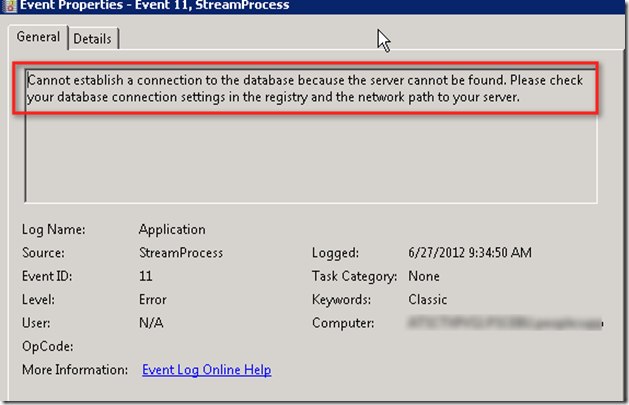
I was trying to configure PVS6.1 setup on windows 2008R2, configuration went successful but I tried to connect to server using console got following error : Event ID 11 Cannot establish a connection to the database because the server cannot be found

image

When the PVS config wizard run it usually populate registry with  the database info in encrypted format. But in my case this was missing

clip_image002

I checked the CTX129060 and policy was applied as mention

clip_image002[6]

We captured processmon and it has some info

image

Following CTX129161 explain to change value to 1 but we had this value , what we did changed to 0 and that worked for us

clip_image002[8]

Monday, June 11, 2012

How to change AGEE login page widget and remove Fileshare tab

When login to AGEE with NS version 9.3 , you will see screen like shown below. Sometime customer don't want to show File Share tab as well as shrink this widget .

image

This has been documented in CTX120643 but it mention some wrong line number for NS build 9.3. For NS build 9.3 change the following under homepage.html file at /netscaler/portal/template/homepage.html. Add as suggested in CTX120643 and shown below at like 602.

image

Once this is done you also need to rearrange the block for that make the changes in same line at line number 567 to the value

image

Save this setting as discussed in CTX12643

image

Now the page will look like this

image