Friday, December 13, 2013

3 steps to enable Auditing on Citrix Provisioning Server

We need to find out the way to track changes made on PVS server or datastore. For that first enable this auditing at farm level

image

Then check for the changes made by selecting Audit trail. This can be checked at every level.

image

Now you can see all the changes which are made.

image

Monday, December 2, 2013

Cannot connect to hypervisor at : No Active hosts found

We were trying to provision XD via PVS 7.1 . Host connection were configured for ESX 5.o update 2. While running XD setup wizard , it was able to establish connection with VC

image

But it was not able to get the VM template

image 

Upon reviewing VC we found that there were few datacenter without any host added to it. We gave XD service account exclusive rights on only respective DC and that way I was able to complete setup wizard.

Source

Wednesday, November 27, 2013

How to present home drive and set Quota for Citrix provisioned desktop

When we use roaming profile we follow best practice suggested by Microsoft for roaming profile which is listed here. This redirected folder is presented as home drive to the end users. So say suppose company has a guideline to limit users home drive , then in that case we must limit this using quota.

We recommend to use different shares for home drive and profiles so that it would be easy to redirect everything and set quota. I usually present redirect folder as users home drive. This is achieve via GPO

image 

So when user login he will see his home drive like this
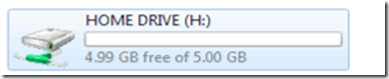
image

To achieve this we decided to use windows 2012 and take benefits of SMB3 . I am not going to explain how to setup DFS here. There are tons of article on the net. What I am going to explain here is how we can setup desire quota for each users.

Windows 2012 have two console for quota setting

image

And other via FSRM

image

For quota setting we need to use FSRM . So lets start using FSRM and define hard quota for 5GB. We need to create custom template with Hard quota. Soft quota does trigger alert and all but hard quota does not.

image

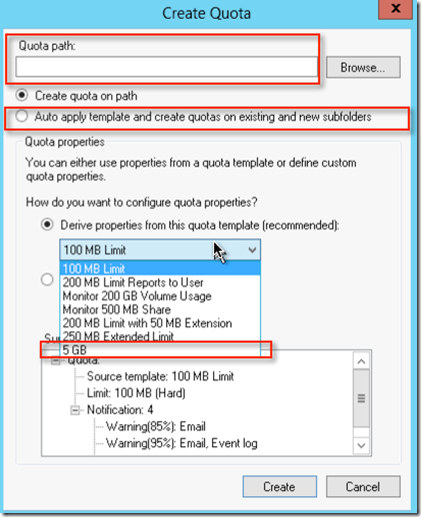
Once template is ready go to the quota section and select create quota
image

Path to quota will be root where I will be storing all the users data . In my case share path name is data which is mention above. Make sure you select “Auto apply template and create quotas on existing and new subfolders”. Here under drop down you will see custom quota created earlier. After applying create , don’t forget to exist and report FSRM. I had challenge  because I was trying to refresh using FSRM. Once quota is set this is how it will looks like

image

Here you can modify quota for individual users

image

So what permission do I need?

Make sure share has following permission set on the shares

image

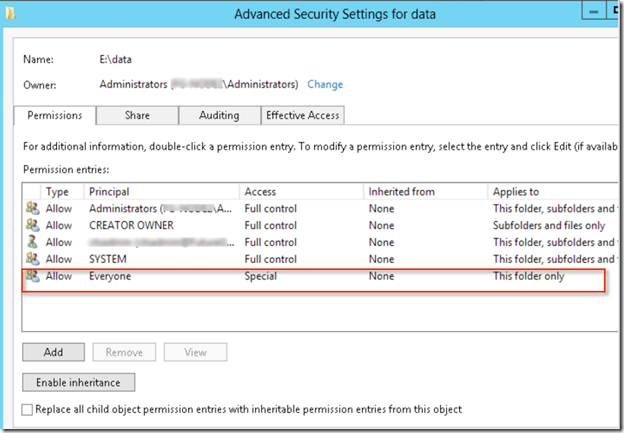
And this permission is in place

image

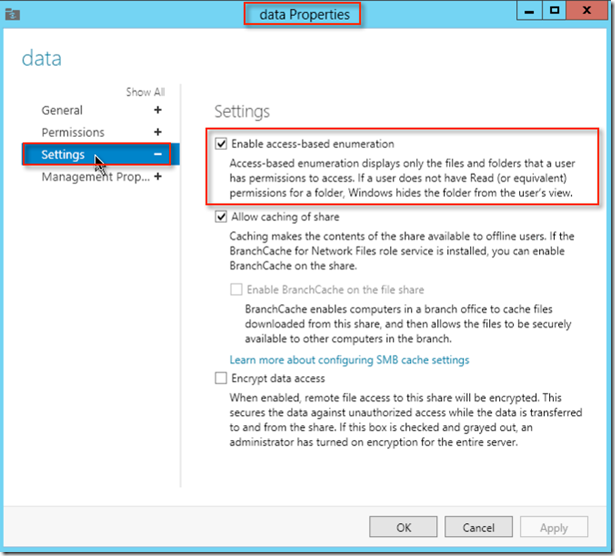
Make sure you enable access based enumeration to prevent users from seeing or accessing others folder
image

This will allow user to see home drive with quota along with  respective permission.

Tata Bye bye till next time

Friday, November 8, 2013

XD 7.1 : MCS error “Provisioning scheme not recognized” with VMWare

I was trying to create MCS catalog using virtual center 5.0 U1 and it was throwing error 

image

While looking at catalog provisioning scheme name was empty

image

While looking at active task it was erroring out after 29%.

image

We looked deeper into error message and it was “Error Id: XDDS:4E970E49”

image

This was the case where virtual and ESX were connected via WAN link with 200ms + of latency . Finally we increase timeout value for VMWare connection  from default to 8 hours and that worked. I am not going to explain details here but if you want to know more trying using wireshark.

image

Friday, September 6, 2013

Configure HP T410 for Citrix AGEE via using Native client

First we need to ensure that all the require certificate which is configured on AGEE SSL is copied over HP T410. To do that we need to enter admin mode

image

Once admin mode is enabled ( It will ask for password and default is root) you can find the option called certificates

image 

Insert the pen drive with require certificate and then import using certificate manager

image 

Once done then create connection using connection manager

image

This connection uses legacy client setting on store front.  So check store front setting for this

image image

Once this setting is supplied it will prompt for user name password. This user name can be in form of domainname\user and then just the password

image

Once user name is accepted , then you will get desktop with all the icon

image